How to Share a Google Drive Folder
Share a Google Drive folder with the right person in about 10 minutes — sign into the correct account, invite by email, pick Viewer or Editor on purpose, send, then verify they can open it. Read one step at a time and finish each before the next. Start with the 30-second preflight. Prefer a link instead of email? See share by link. Recipient blocked with "You need access"? See need access. Want to revoke later? See stop sharing. Wrong Google account signed in? Confirm your avatar email matches the account that owns the folder before Step 1.
Tips for reading this guide
- One step at a time. Read the green caption, the Why line, then the bullets.
- Move on when the green done line is true — then go to the next step.
- Viewer means they can open files but not edit. Editor means they can change or delete files inside the folder.
- Restricted link means only people you invite. Anyone with the link is broader — use it only when you mean it.
- Prefer a link, "You need access," or want to stop sharing? Jump to the matching branch below.
- Need a helper? Ask someone you trust to sit with you for Steps 3–4 so the email and Viewer/Editor choice are correct.
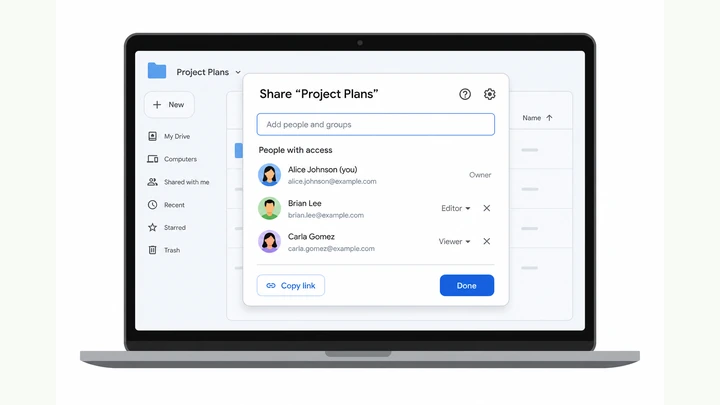
Things You'll Need
- Computer browser signed into the Google account that owns the folder
- The folder already uploaded or created in My Drive
- Recipient email address spelled correctly
- Decision made: Viewer (safe default) or Editor (must edit/upload)
- Optional: Incognito window or second Google account to test access
- About 10 quiet minutes — do not rush the role dropdown
Where are you stuck?
Follow Start here for email invite sharing on drive.google.com. Prefer a link, see "You need access," or want to revoke access? Jump to the matching branch.
- I want to share a folder by email invite Drive → Share → Viewer or Editor
- I prefer to send a link instead of typing email Anyone with the link → Viewer → copy
- They see "You need access" or Request access Verify email → re-share or link
- I want to stop sharing or remove someone Share → Remove → Restricted
Start heredrive.google.com → Share by email → Viewer or Editor → verify access
30-second preflight — all checks must be YES.
Right account · folder exists · recipient email ready · Viewer vs Editor decided.
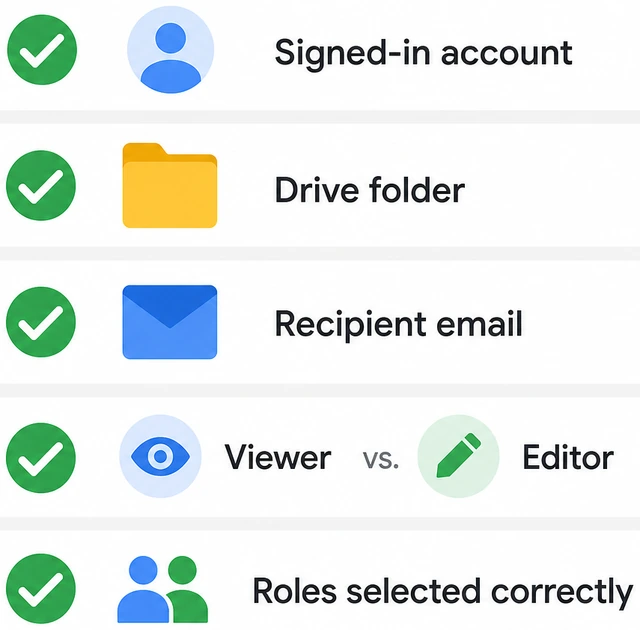
Sharing from the wrong account or picking Editor by habit sends access to the wrong org or lets someone delete files — four quick checks prevent that.
- Correct account? Click your avatar — the signed-in email owns or can edit this folder.
- Folder + email ready? Folder is in My Drive and you have the recipient's exact address.
- Role decided? Default to Viewer unless they must upload or edit files.
All checks are YES — you are ready to open Drive and find the folder.
All YES? Continue to Step 1. Signed into the wrong account? Switch accounts first, then return here.
Open drive.google.com and find the folder.
drive.google.com → My Drive → locate the folder you want to share.
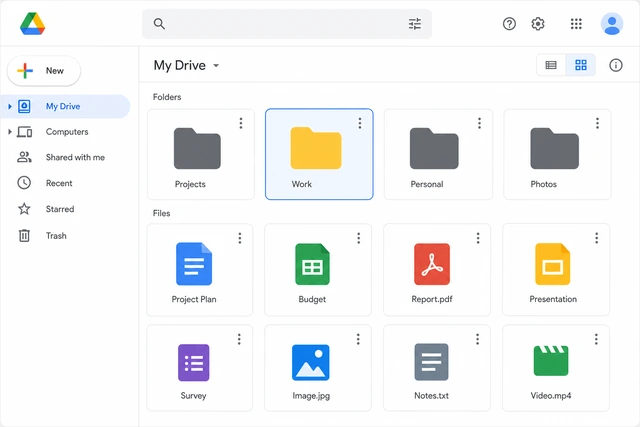
Drive only shares what is already in your cloud — starting from the correct signed-in account keeps the folder visible and manageable.
- In a browser, go to https://drive.google.com.
- Confirm your avatar shows the account that owns the folder.
- Find the folder under My Drive (use search if needed).
The target folder is visible in My Drive while signed into the correct Google account.
Folder missing? Upload it first or check Shared with me if someone else owns it.
Open the Share dialog for the folder.
Right-click folder → Share — or open folder → Share icon (person +).
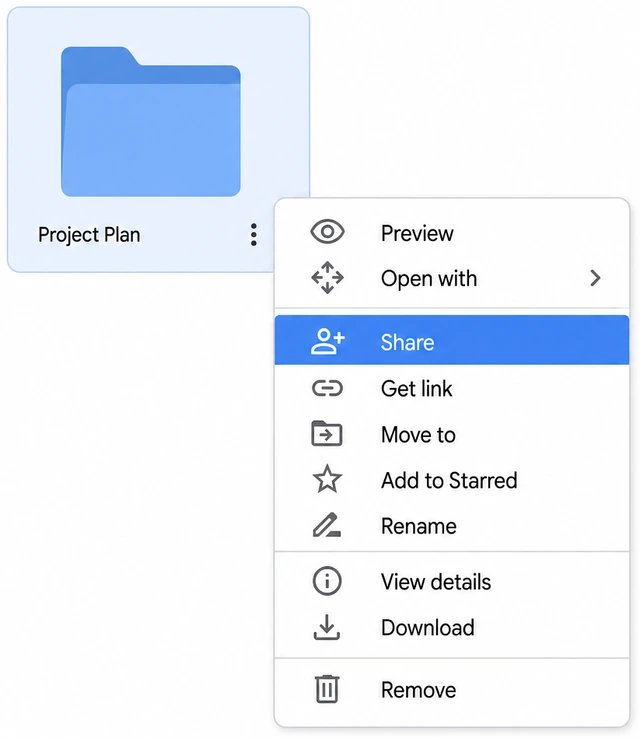
The Share dialog is the only place to add people and set roles — opening it first avoids copying a link with the wrong default access.
- Right-click the folder → Share.
- Or open the folder and click the Share icon (person with +).
- Stop when the Share dialog box is open.
The Share dialog is open for this folder.
No Share option? You may not be the owner — ask the owner to share or grant you Manager access.
Add the recipient email in Add people and groups.
Type full email → Enter — chip appears when address resolves.
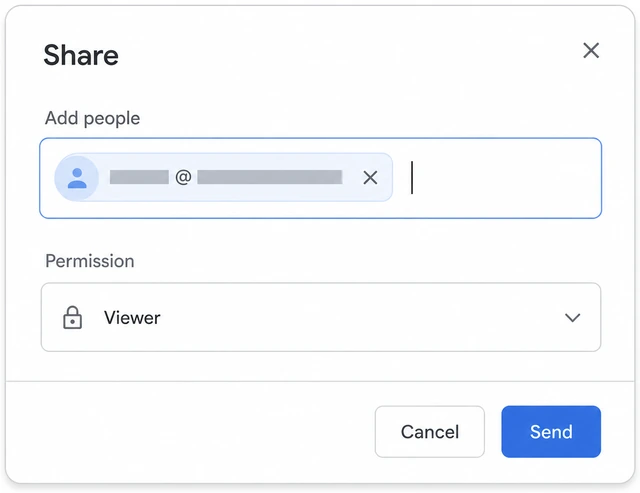
Email invite ties access to a specific person — a typo here is the top cause of "You need access" loops.
- Click Add people and groups (wording may vary slightly).
- Type the recipient's full email and press Enter.
- Confirm an email chip appears (may show their name if in your contacts).
The recipient's email appears as a chip in the Add people field.
Prefer sending a link instead of typing email? → Share by link.
Set the role to Viewer or Editor — on purpose.
Role dropdown → Viewer (default safe) or Editor only if they must change files.
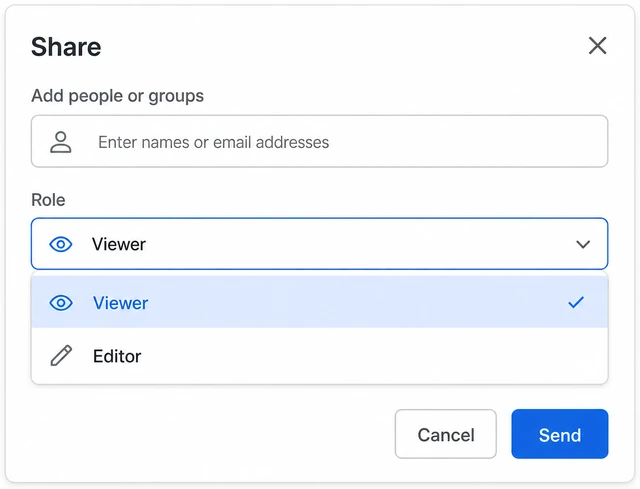
Editor can rename, move, and delete everything inside the folder — Viewer is the safe default when someone only needs to read or download.
- Click the role dropdown next to the email chip.
- Choose Viewer for read-only, or Editor only if they must upload or edit.
- Use Commenter only when they need to leave comments without editing files.
The role dropdown shows Viewer (or your intentional Editor/Commenter choice).
Editor warning: Editors can delete or move files — do not pick Editor out of habit.
Choose whether to notify the recipient.
Leave Notify people on — or uncheck only if you will tell them yourself.
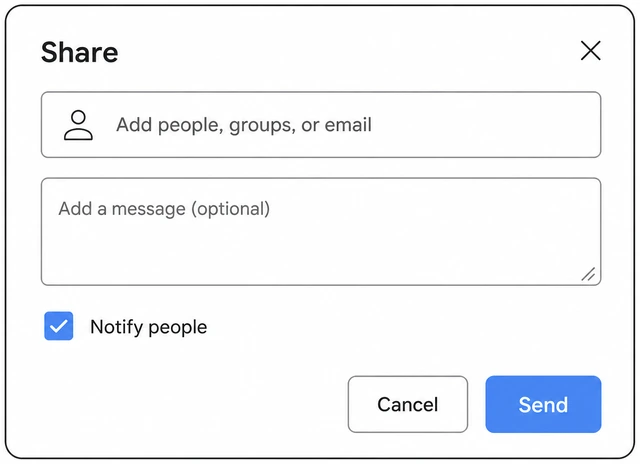
The email notification includes a direct link — turning it off without a follow-up message leaves the recipient unaware they have access.
- Find Notify people (usually checked by default).
- Leave it on so Google emails them a link.
- Uncheck only if you will text or call them with the folder name yourself.
Your notify choice is set — checked (default) or consciously unchecked.
Click Send or Share to deliver the invite.
Send / Share → wait for dialog to close or show Shared confirmation.
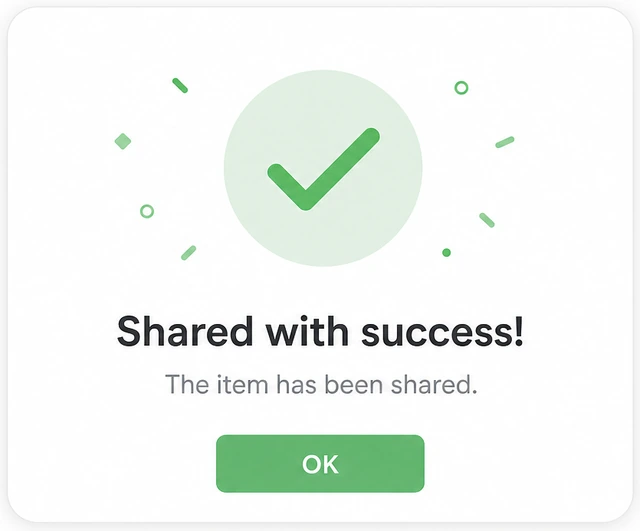
Until you confirm Send, the recipient has no access — closing early without sending leaves them blocked.
- Review the email chip and role one last time.
- Click Send or Share.
- Wait until the dialog closes or shows a Shared confirmation.
The invite was sent — the Share dialog closed or shows Shared.
Confirm the person appears under Shared with.
Reopen Share → Shared with — name/email listed with correct role.
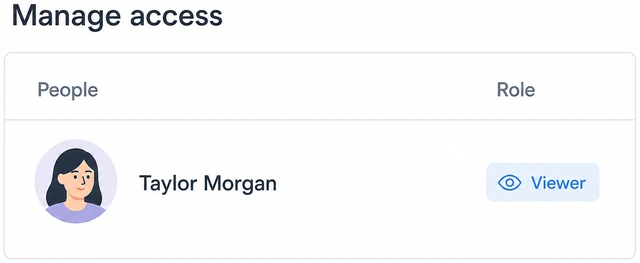
A quick list check catches wrong emails, pending invites, or an accidental Editor role before the recipient opens anything.
- Right-click the folder → Share again.
- Look under People with access / Shared with.
- Confirm their name or email appears with the role you chose.
The recipient is listed under Shared with at the correct Viewer, Commenter, or Editor role.
Verify the recipient can open the folder.
Ask them to open Drive — or test Copy link in Incognito after granting access.
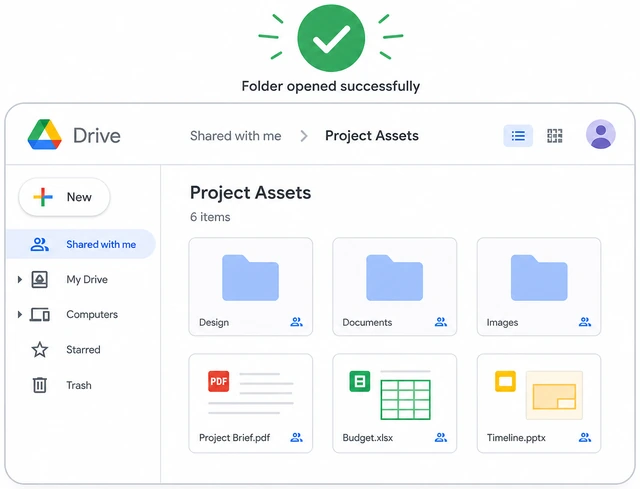
Sending the invite is not the same as confirmed access — a one-minute test catches wrong accounts and Restricted-link mismatches early.
- Ask the recipient to open the notification email or find the folder in Shared with me.
- Or in Share, click Copy link and open it in an Incognito window.
- Confirm the folder contents load — not a "You need access" screen.
The recipient opened the folder, or your Incognito test loaded the contents without an access block.
Blocked with "You need access"? → Need access. Prefer link sharing next time? → Share by link.
Bookmark how to manage access later.
Share → change role or Remove — same dialog you used to invite.
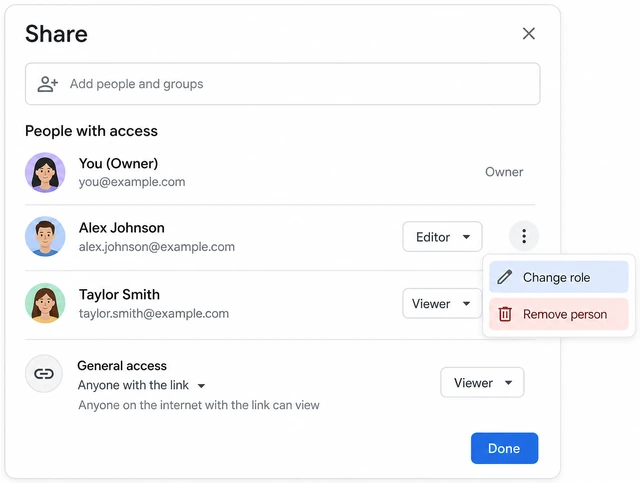
Temporary shares left open are a common leak — knowing where to revoke access lets you tighten or remove sharing without hunting menus.
- Remember: Share on the folder opens the same access panel.
- To downgrade: change their role or click Remove.
- To tighten link access: set General access back to Restricted.
You know Share is where to change roles, remove people, or set Restricted access later.
Ready to revoke now? → Stop sharing.
Share by linkAnyone with the link → Viewer → copy → send privately
Open Share and set General access to Anyone with the link.
Share → General access → Anyone with the link (not Restricted).
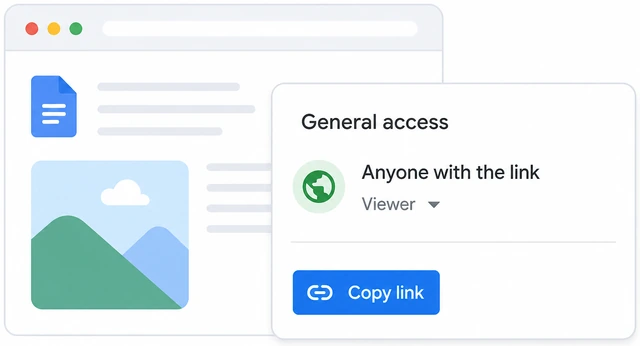
A Restricted link only works for people already invited — switching to Anyone with the link creates a URL that works without an email chip.
- Right-click the folder → Share.
- Under General access, open the dropdown.
- Choose Anyone with the link.
General access reads Anyone with the link.
Work or school Drive may block Anyone with the link — use Restricted + email invites only for org-only sharing.
Set the link role to Viewer.
Link role → Viewer — not Editor unless they must upload files.
Anyone who gets the URL inherits the link role — Editor on a broad link lets strangers change or delete files if the link leaks.
- Next to General access, open the role dropdown.
- Select Viewer unless they must edit.
- Confirm it does not still say Editor.
The link role is Viewer (or your intentional Editor choice).
Copy the link from the Share dialog.
Copy link → Link copied confirmation appears.
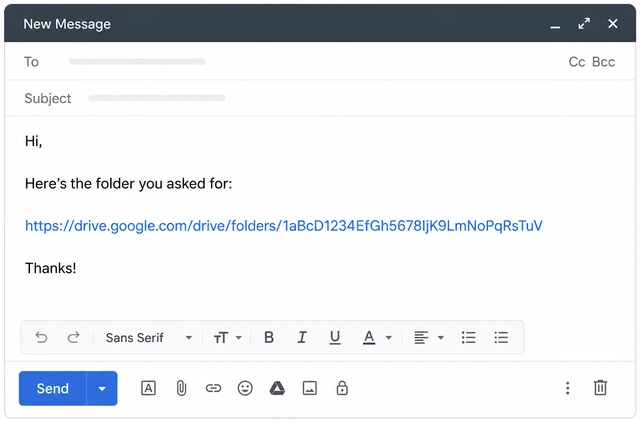
Copying from Share ensures the URL matches the access level you just set — old links from the address bar may still be Restricted.
- Click Copy link in the Share dialog.
- Wait for Link copied (or similar).
- Paste once into a draft message to confirm it looks like a drive.google.com URL.
The share link is on your clipboard.
Send the link through a private channel.
Text, email, or DM the link — not a public post or open forum.
Anyone with the link behaves like a key — posting it publicly means anyone who finds it can open the folder until you revoke the link.
- Send the link by text, email, or direct message to the intended person.
- Tell them it is Viewer access unless you chose Editor.
- Ask them to confirm the folder opens — if blocked, return to email invite on the main path.
The intended recipient received the link privately and can open the folder.
Need org-only access? Set General access back to Restricted and invite by email on the main path instead.
Need accessFix "You need access" — verify email, re-share, or widen link
Confirm the exact email they are signed in with.
Recipient checks avatar email — must match the address you shared to.
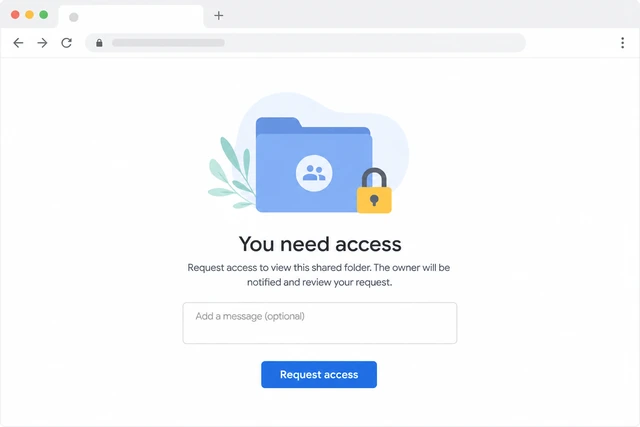
Drive grants access per Google identity — a work email invite fails when they open the link while signed into a personal account.
- Ask them to click their Google avatar and read the signed-in email.
- Compare it character-by-character to the address you invited.
- If different, they should switch accounts or you re-share to the email they actually use.
You know the exact Google email they are using when opening the folder.
Non-Google email? View often works; Editor may require a Google account — try Viewer first.
Share again to that exact email as Viewer.
Share → add corrected email → Viewer → Send.
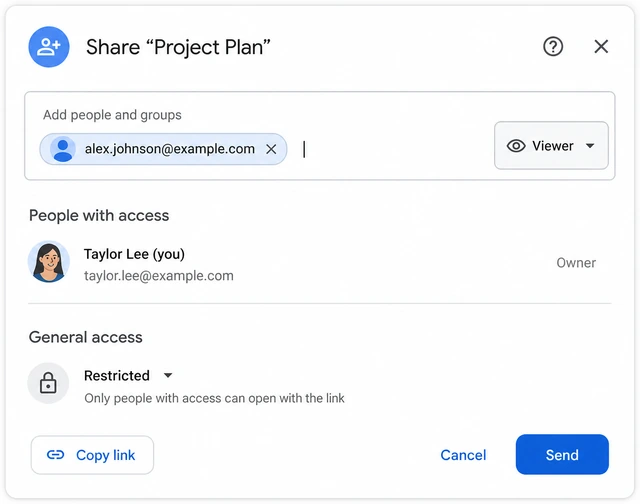
Re-sending with the corrected address fixes typos and account mismatches without changing folder contents.
- Open Share on the folder.
- Add the corrected email → set Viewer → Send.
- Ask them to open the new notification or check Shared with me.
A fresh invite went to the confirmed email and they retried opening the folder.
Or switch to Anyone with the link and resend.
General access → Anyone with the link → Viewer → Copy link → resend.
When email identity keeps failing, a Viewer link sidesteps account mismatch — tighten back to Restricted after they confirm access.
- In Share, set Anyone with the link and role Viewer.
- Click Copy link and send a fresh URL.
- After they confirm access, set General access back to Restricted if the share was temporary.
They opened the folder via the new Viewer link, or email re-share worked.
Still blocked? The folder owner or work Drive admin may need to approve — ask the owner or IT.
Stop sharingRemove people or set Restricted to revoke access
Open Share → Manage access on the folder.
Right-click folder → Share — same panel where you invited people.
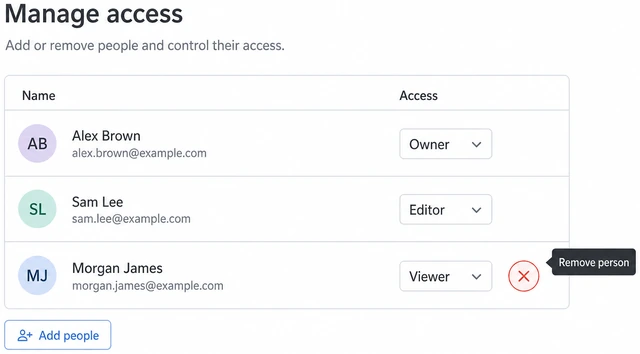
All revoke actions live in the Share dialog — if Share is missing, you are not the owner and cannot remove others.
- Go to drive.google.com and find the folder.
- Right-click → Share (or open folder → Share icon).
- Review People with access and General access.
The Share dialog is open and shows who currently has access.
No Share button? You are not the owner — ask the owner to remove people or transfer ownership.
Remove the person or set General access to Restricted.
Remove next to their name — or General access → Restricted to kill the open link.
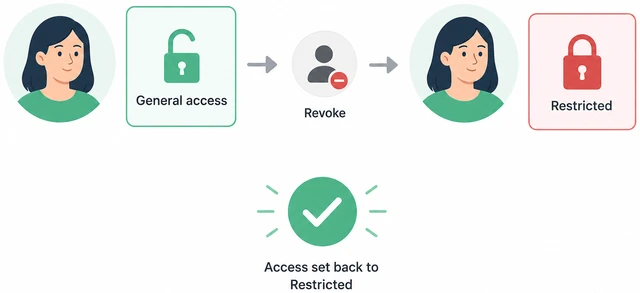
Removing a person revokes their invite; Restricted disables Anyone-with-the-link access so old URLs stop working.
- To revoke one person: click Remove (trash) next to their name.
- To close a link share: set General access to Restricted.
- Click Done or Save if prompted.
The person was removed and/or General access is Restricted.
Confirm they no longer appear and test the old link.
Reopen Share — gone from list; old link shows need access in Incognito.
A quick confirmation catches cached sessions and forgotten link shares before you assume access is fully closed.
- Reopen Share — the person should be gone from People with access.
- Open the old link in Incognito — expect "You need access."
- If they still see files, check General access is Restricted and no duplicate shares exist.
They are removed from Shared with and the old link no longer grants access in Incognito.
Cannot remove someone? You may lack owner rights — contact the folder owner.
When to get help
- Ask a trusted person to sit with you for Steps 3–4 so the email and Viewer/Editor choice are correct.
- If the recipient stays blocked after re-share and a fresh Viewer link, contact the folder owner or work Drive admin.
- If you cannot sign into the Google account that owns the folder, fix password or 2FA access first — see related guides below.
When This Doesn't Work
- Work or school Google Drive. Your admin may block Anyone with the link or external sharing. Use Restricted + approved emails only, or ask IT to allow the share.
- Folder owned by someone else. You can share only if you are owner or have Manager permission — otherwise ask the owner to invite people.
- Mobile Drive app. Share works on phone, but labels differ slightly. For first-time sharing, use drive.google.com on a computer.
- Cannot sign into the right Google account. Password or 2FA issues block Drive entirely — fix sign-in before sharing.
Warnings
- Do not set Editor unless they must change files — Editors can delete or move everything in the folder.
- Anyone with the link stays open until you set Restricted — do not leave it on after a temporary share.
- Do not post Drive links on public social media unless you intend the world to view the folder.
- Verify you are signed into the correct Google account (personal vs work) before sharing sensitive files.
Tips
- Default new shares to Viewer — upgrade to Editor only when someone asks and you trust them.
- Add a short note in the notify message describing what is inside the folder so recipients know why they got the invite.
- After a project ends, open Share and remove people plus set Restricted — treat it like locking a door.
- For family photos, Viewer + email invite is safer than a long-lived open link.
FAQ
What is the difference between Viewer and Editor?
Viewer can open and download files but not change them. Editor can add, edit, move, and delete files inside the folder. When unsure, choose Viewer.
Can I share with someone who does not have Gmail?
Yes for many cases. They can often open as Viewer with any email address. Editor access may require them to sign in with a Google account.
How do I stop sharing later?
Open Share on the folder, remove people from the list, and set General access to Restricted. See the Stop sharing branch for step-by-step checks.
Comments
Questions, corrections, and what worked for you. Comments are reviewed before they appear.