How to Change a Gmail Password
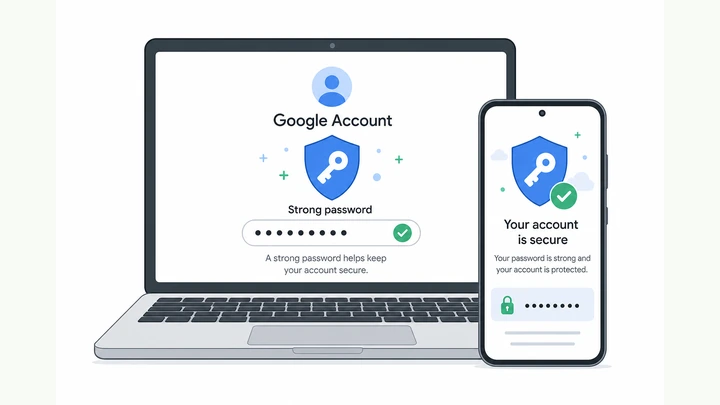
Change your Google Account password (the same password Gmail uses) in about 15 minutes — confirm the right account, open Security → Password, set a strong new password, then prove sign-in works before you walk away. Read one step at a time and finish each before the next. Start with the 30-second preflight. Don't know your current password? See forgot current password. Google won't accept the new one? See password rejected. Blocked by 2FA after the change? See stuck on 2FA. Already use 2-Step Verification? Keep your authenticator or backup codes handy — changing the password does not turn 2FA off.
Tips for reading this guide
- One step at a time. Read the green caption, the Why line, then the bullets.
- Move on when the green done line is true — then go to the next step.
- Google Account password is the same password for Gmail, YouTube, and other Google apps on that email.
- 2-Step Verification (2FA) is a second check after your password — you still need it after changing the password.
- Forgot current password, new password rejected, or 2FA blocks sign-in? Jump to the matching branch below.
- Need a helper? Ask someone you trust to sit with you for Steps 4–7 so the new password is saved and tested before you sign out.
Things You'll Need
- A computer or phone browser where you can reach myaccount.google.com
- Your current Google password that works today — or access to recovery email / phone
- A password manager app, or paper + pen in a safe place, for the new password
- Recovery email and phone you can open right now (check before you change anything)
- 10–15 quiet minutes — do not change the password while rushing or multitasking
Where are you stuck?
Follow Start here for a normal password change. If you forgot the current password, Google rejects the new one, or 2FA blocks sign-in after the change, jump to the matching branch.
Start hereGoogle Account → Security → Password → test new sign-in
30-second preflight — all four checks must be YES.
Device unlocks · current password or recovery · vault ready · recovery contact reachable.
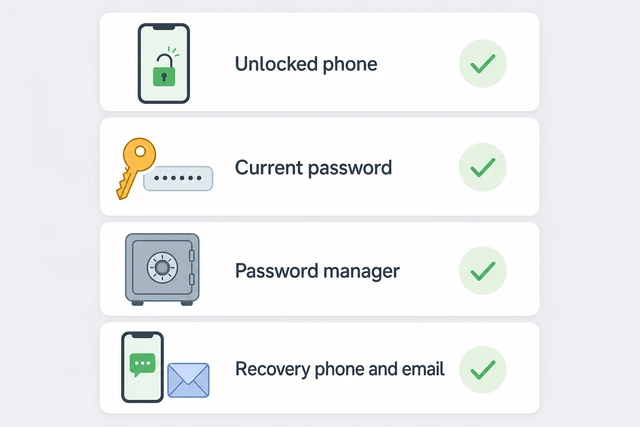
Password changes can lock you out if you forget the current password or lose recovery access — checking first keeps an exit path open.
- Device ready? You can unlock the phone or computer you will use for this task.
- Current access? You know today's Google password, or you can reach recovery email / phone.
- Save the new one? Password manager open, or paper ready in a safe place — plus recovery contact works now.
All four checks are YES — you are ready to confirm the correct Google account next.
All YES? Continue to Step 1.
Confirm you are on the correct Google account.
Avatar or Manage your Google Account — the email shown must be the one you mean to change.
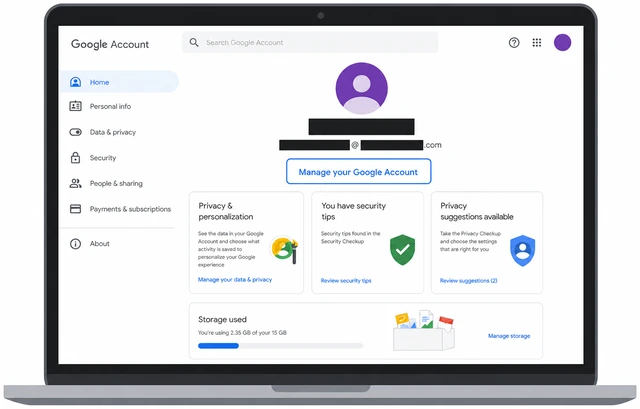
Browsers often hold several Google accounts — changing the wrong one leaves your real Gmail password untouched and wastes the new password you just invented.
- Open gmail.com or myaccount.google.com in the browser you will use.
- Click your profile picture (top right) and read the email address under your name.
- If it is wrong, switch accounts or sign out and sign in with the correct email before continuing.
The email on screen is the Google account whose password you intend to change.
Multiple accounts in Chrome? Use an Incognito window and sign in with only the target email.
Open Google Account Security → Password.
myaccount.google.com → Security → Password under How you sign in to Google.
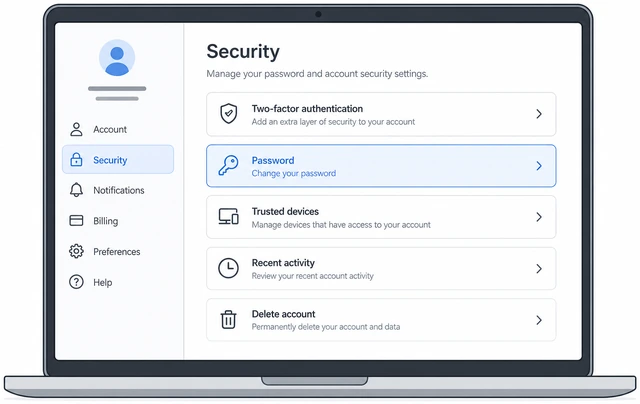
The Password control lives under Security — hunting in Gmail settings or third-party apps will not reach the account password.
- Go to https://myaccount.google.com/security (or Account → Security).
- Scroll to How you sign in to Google.
- Click or tap Password.
The Password page or a re-sign-in prompt to reach it is on screen.
Re-verify with your current password.
Enter current password or tap Yes on a Google prompt on a signed-in phone.
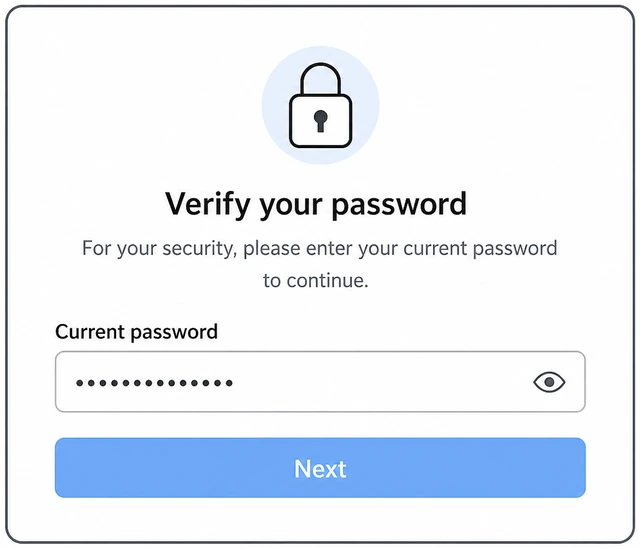
Google must confirm it is really you before it replaces the key that protects mail, photos, and payment methods tied to the account.
- When prompted, type your current Google password (not the new one yet).
- Or tap Yes on a Google sign-in prompt on a phone already signed into this account.
- Stop when the change-password form appears — not an endless wrong-password loop.
Google accepted your current credentials and shows the new-password entry screen.
Don't know the current password? → Forgot current password — do not keep guessing.
Create a strong new password.
12+ characters · unique · not reused from banking or social sites.
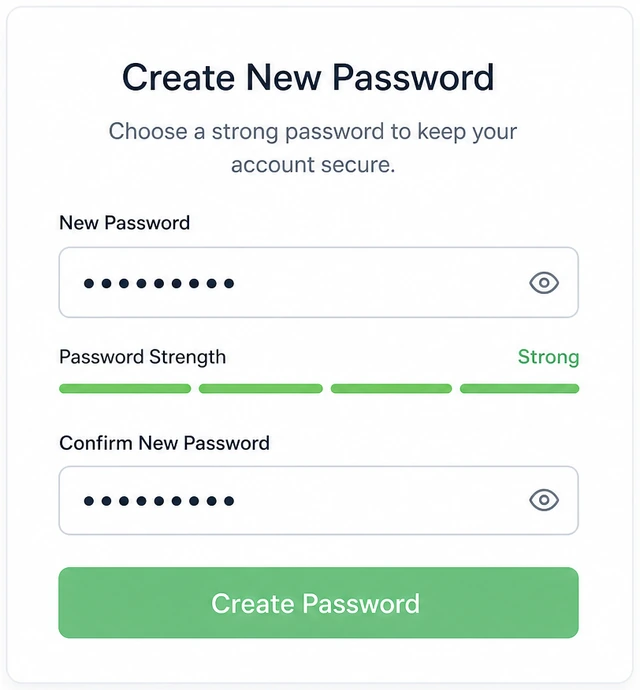
A leaked or reused password is the fastest way back in for strangers — Google blocks known compromised passwords and weak patterns for good reason.
- In the New password field, type a passphrase you have never used elsewhere (12+ characters).
- Mix words, numbers, and symbols — or use your password manager's generator.
- Watch Google's strength hint; adjust until it accepts the password as strong enough.
You have a new password ready that meets Google's strength requirements.
Google rejects it immediately? → Password rejected.
Type the new password twice and save it offline.
New + Confirm must match exactly — save to password manager or written vault before submitting.
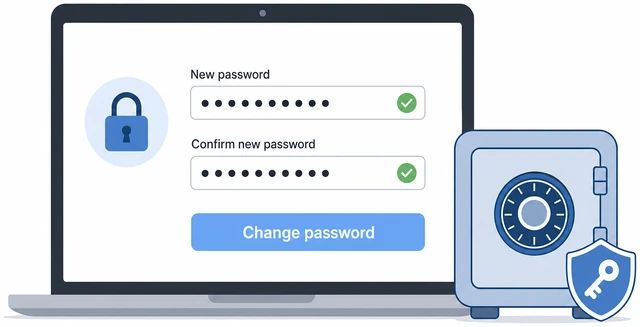
A typo in the confirm field is the top reason Google refuses the change — saving before submit means you won't forget the password mid sign-out test.
- Retype the exact same password in Confirm new password.
- Save it in your password manager, or write it on paper and put the paper somewhere safe.
- Do not submit until both fields match character for character.
Both fields match and you have an offline copy of the new password saved.
Fields won't match or Google says password isn't allowed? → Password rejected.
Submit the password change.
Change password → wait for success message or return to Security with no error.
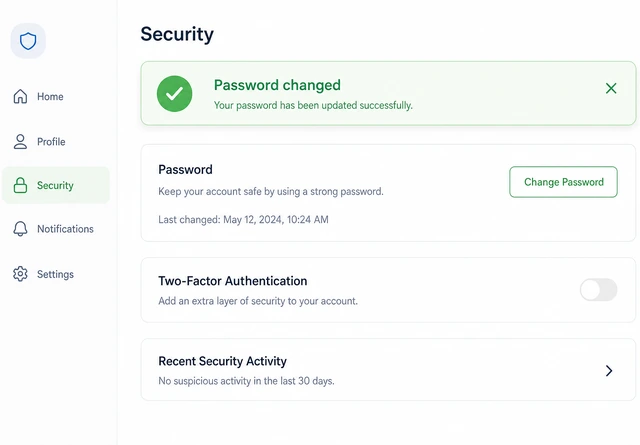
Closing the tab before confirmation can leave you unsure whether the old or new password is active — wait for Google's explicit OK.
- Click or tap Change password (wording may say Save).
- Wait for a success message, or for the page to return to Security without a red error.
- Leave the tab open until you see confirmation — do not rush to sign out yet.
Google confirmed the password change succeeded (success banner or clean return to Security).
Error after submit? → Password rejected.
Sign out and sign in with the new password.
Sign out or Incognito → new password → complete 2FA if Google asks.
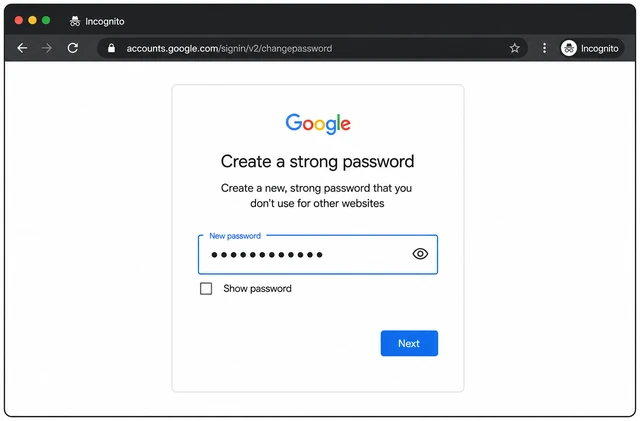
Testing now — while recovery options and 2FA devices are in hand — catches a typo before you lock yourself out on every device.
- Sign out of Google, or open an Incognito / Private window.
- Sign in with your email and the new password.
- If 2-Step Verification is on, enter a fresh authenticator code or backup code when asked.
Gmail or Google Account home opens using the new password (plus 2FA if enabled).
Second step fails? → Stuck on 2FA. Setting up 2FA for the first time? See How to Set Up Two-Factor Authentication.
Confirm the old password no longer works.
One clean try with the old password in Incognito — it must be rejected.
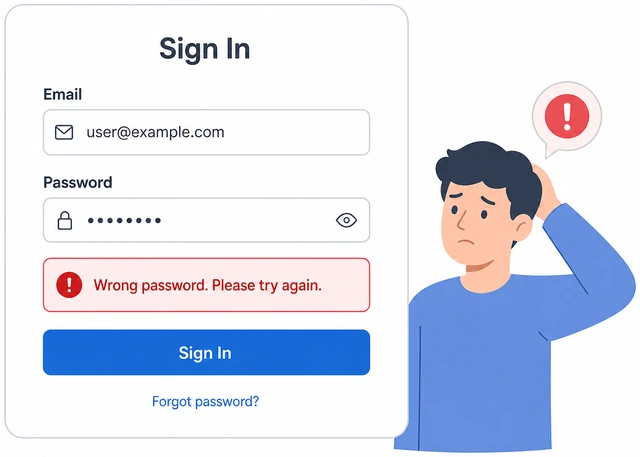
Proving the old password is dead confirms the change took effect — browser autofill sometimes masks a half-finished update.
- In the same Incognito window (or a new one), start sign-in again.
- Type the old password once — clear autofill first if the browser fills the new one.
- Expect Wrong password — then sign in with the new password to continue.
The old password was rejected and the new password still works on retry.
Old password still works? Wait two minutes and repeat Step 8 — if it still works, rerun Steps 4–6 without closing the Security tab.
Re-sign in on your phone or tablet.
Open Gmail or Google app → enter new password if prompted → mail loads.
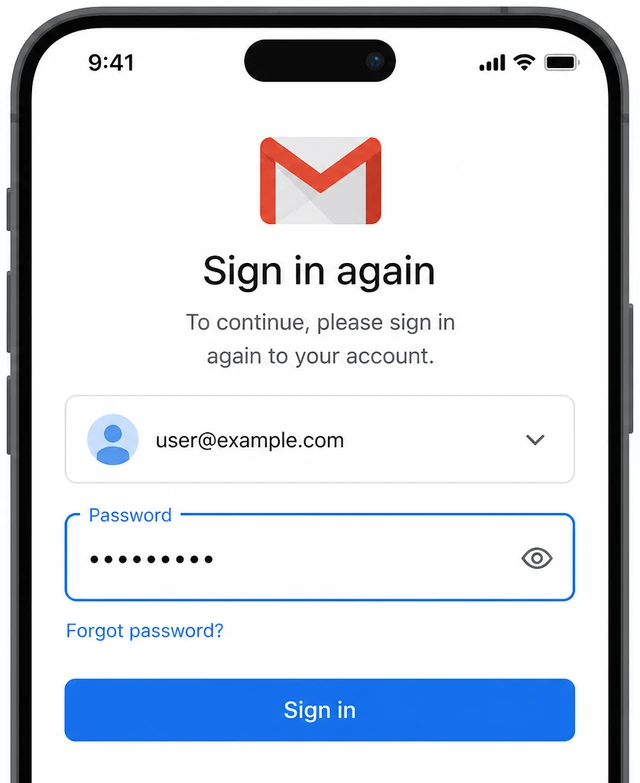
Phones often keep an old session for hours — updating now prevents surprise lockouts when the app finally asks again on the road.
- On your phone, open Gmail or the Google app for this account.
- If you see Verify it's you or a password prompt, enter the new password.
- Complete 2FA on the phone if asked — same authenticator or backup codes as Step 7.
Mobile Gmail or Google app loads mail without a password error loop.
Mail app keeps asking? Remove the Google account from phone Settings → Accounts, then add it back with the new password.
Review devices and recent security activity.
Security → Your devices + recent activity — sign out anything you don't recognize.
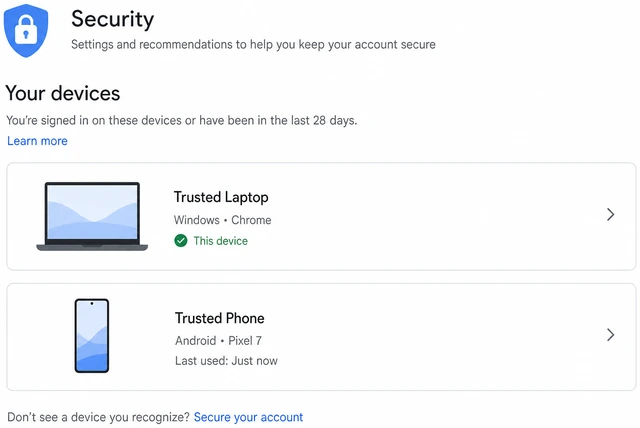
A password change is a good moment to evict stray sessions — especially if you suspect someone else knew the old password.
- On a browser, open myaccount.google.com/security.
- Open Your devices and skim the list — sign out sessions on devices you no longer use.
- Glance at Recent security activity for unfamiliar password-change alerts.
You reviewed devices and activity; no unknown device remains signed in (or you signed it out).
See a device or location you do not recognize? Change the password again and follow Google's Secure your account checklist.
Forgot current passwordRecovery flow before you can open Password settings
Start Forgot password on accounts.google.com.
Sign out or Incognito → enter email → Forgot password.
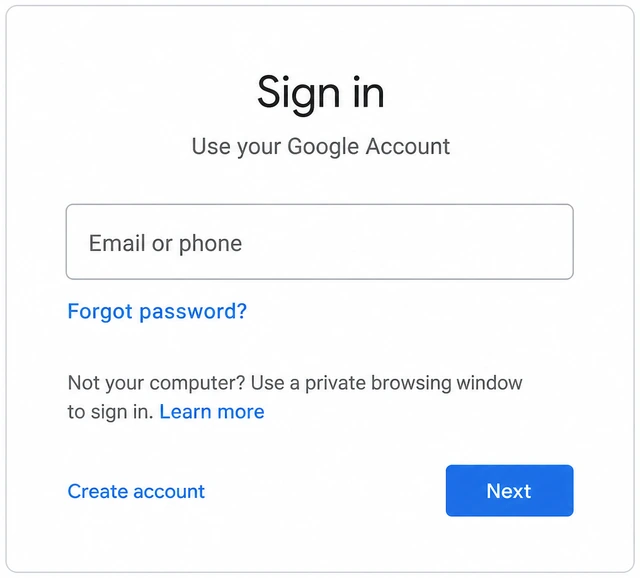
The in-account Password page always needs the current password — recovery is the only safe path when you truly don't know it.
- Open https://accounts.google.com in Incognito, or sign out first.
- Enter the Google email you need and click Next.
- Click Forgot password? instead of guessing random old passwords.
You reached Google's account recovery screen for this email.
Stop after three wrong guesses — repeated failures can temporarily lock recovery.
Complete recovery and set a new password.
Recovery email / SMS / phone prompt → verify → create new password → sign in.
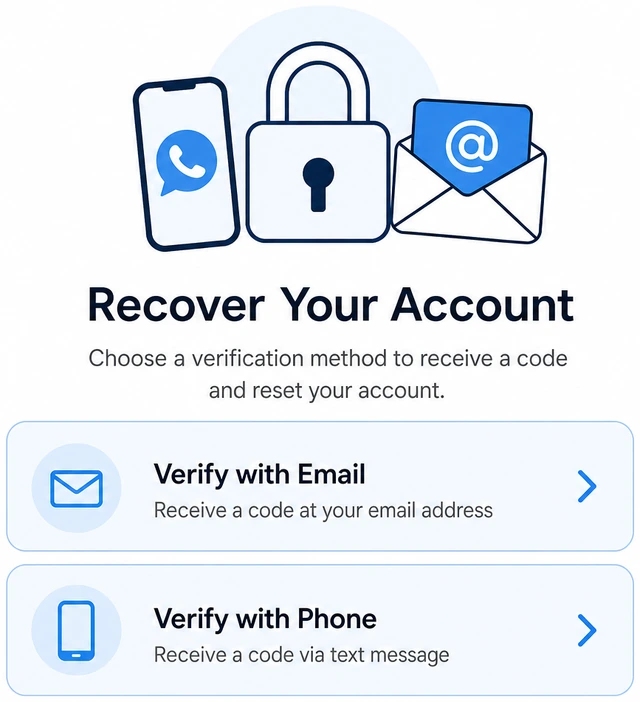
Recovery proves you control a backup channel — once done, that new password becomes your current password for the main path.
- Pick a recovery option you can reach now (backup email, text, or signed-in phone prompt).
- Enter the code or tap Yes on the prompt, then set a strong new password.
- Sign in with that new password, then return to main-path Step 2 if you want to change it again.
You signed in via recovery with a password you know and saved.
No recovery options work? Use Google's Account Recovery form at https://accounts.google.com/signin/recovery — do not keep guessing.
Password rejectedFix mismatch, weakness, or known-leak blocks
Check both password fields match exactly.
Retype slowly — Caps Lock off — both fields identical.
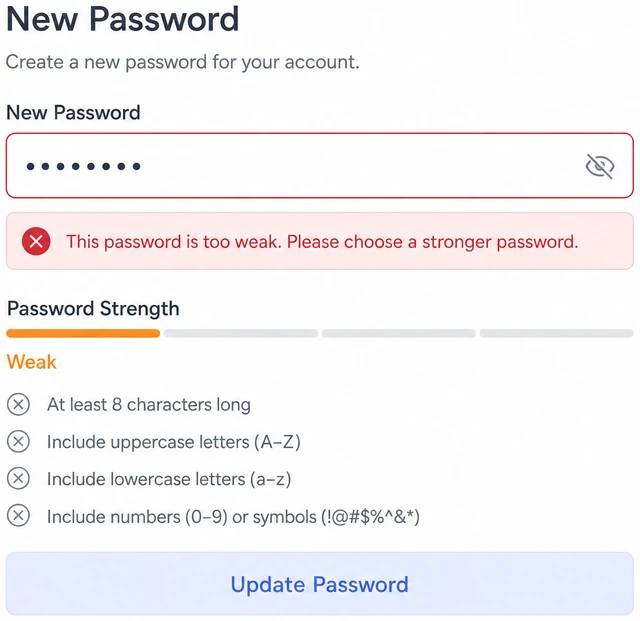
Hidden typos and Caps Lock are the usual rejection cause — fixing match errors is faster than inventing a third new password.
- Turn Caps Lock off and clear both password fields completely.
- Type the new password in the first field, then again in Confirm — character by character.
- Use Show password (eye icon) on both fields to compare before submitting.
Both fields show the identical password with no mismatch error.
Use a longer unique passphrase — avoid breached patterns.
16+ chars · random or passphrase · no birthdays or old passwords.
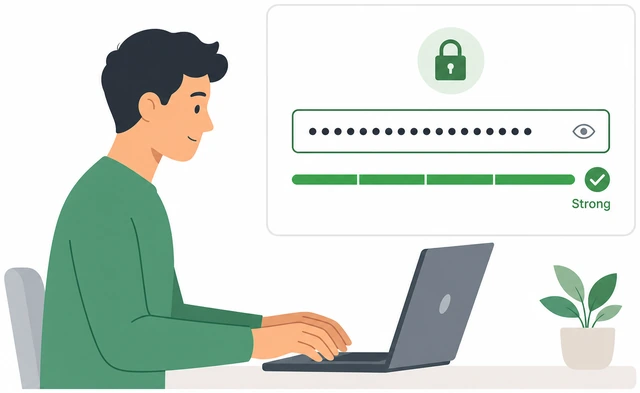
Google blocks passwords found in public breach lists and very short strings — a manager-generated passphrase usually clears the bar on the first try.
- Generate a 16+ character password in your password manager (or pick four random words).
- Avoid names, birthdays, and passwords you use on banking or social sites.
- Paste into both fields, submit once — if still rejected, try another browser or check for a work/school admin lock.
Google accepted the new password, or you identified a work-account policy block.
Still rejected after three strong unique tries? Try Chrome Incognito or Firefox — work or school accounts need your IT admin, not another personal password.
Stuck on 2FASecond step fails after password change
Use a fresh authenticator code or a backup code.
Wait for next 6 digits — or choose Try another way → backup code.
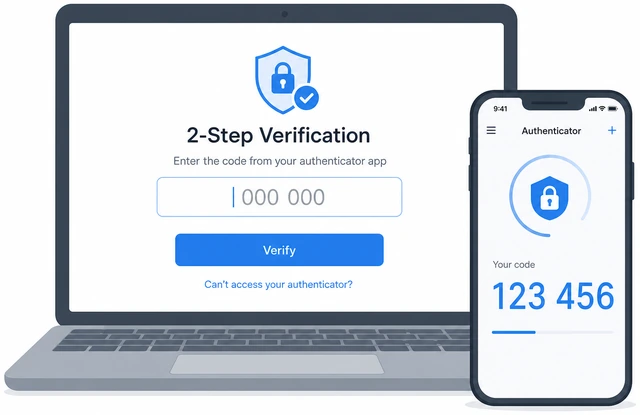
Changing the password does not reset 2FA — you still need the same second step, and expired codes look like a new password problem.
- Open your authenticator app and wait for a new 6-digit code if the timer is almost empty.
- Type six digits only — no spaces — or tap Try another way → Backup code.
- Enter one unused backup code from your saved printout or password manager.
Google accepted a fresh authenticator code or a valid backup code.
No backup codes saved? See get backup codes while signed in on any trusted device.
Turn on automatic date and time if codes keep failing.
Settings → Date & time → Set automatically ON → wait 30 sec → new code.
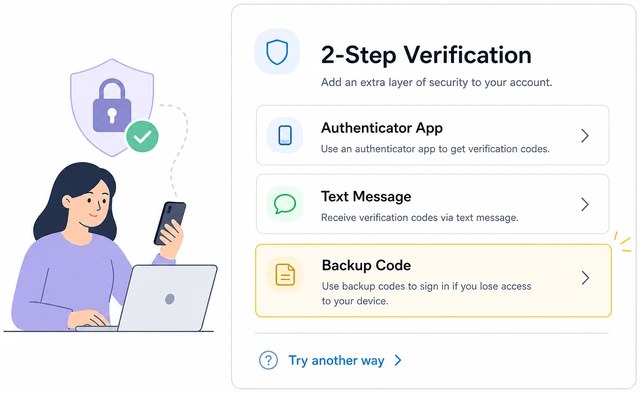
Authenticator codes are time-based — a manually set phone clock makes every code wrong even when the password is correct.
- On the phone with the authenticator, open Settings → Date & time.
- Turn Set automatically ON and wait about 30 seconds on Wi‑Fi or cell data.
- Try the next authenticator code, or a backup code if codes still fail twice.
Automatic time is ON and you retried sign-in with a fresh code or backup code.
No codes and no phone? Use Google Account recovery — do not burn every backup code in a panic loop. Full 2FA setup help: How to Set Up Two-Factor Authentication.
When to get help
- Ask a trusted person to sit with you for Steps 4–7 so the new password is saved and tested before you sign out everywhere.
- If recovery email, phone, and backup codes all fail, use Google Account recovery — stop guessing passwords in a loop.
- For a work or school Google account, contact your IT admin — org policy may block self-service password changes.
- Setting up or fixing 2FA? Use the related guide <a href="/how-to-set-up-two-factor-authentication/">How to Set Up Two-Factor Authentication</a> while you can still sign in on at least one trusted device.
When This Doesn't Work
- Work or school Google account. Your admin may block self-service password changes or force a company portal. Use your organization's password tool or contact IT — this personal Google path may not apply.
- Old desktop mail app or IMAP client. Some apps use an App Password (Security → App passwords) separate from your account password. After changing the account password, update or regenerate app passwords where Gmail stops syncing.
- Password change succeeded but a device still shows old mail. Sign out the Google account in that app's settings, or remove and re-add the account with the new password.
Warnings
- Do not change your password until recovery email and phone are reachable — verify them under Security → Recovery before you start.
- Never share your new password, backup codes, or authenticator screenshots in chat, email, or phone calls — Google support will not ask for them.
- Stop guessing if you forgot the current password — use Forgot password or Account Recovery instead of locking the account.
- If someone else may know your old password, review Your devices and sign out unknown sessions right after Step 6.
Tips
- Use a password manager to generate and store the new password — you only need to remember one master password.
- After Gmail works, update the same Google password anywhere else you saved it (Chrome saved passwords, old notes, other browsers).
- Turn on 2-Step Verification if you have not — a new password plus 2FA is much harder to steal than a password alone.
FAQ
Is my Gmail password the same as my Google Account password?
Yes. One Google Account password signs you into Gmail, YouTube, Drive, and other Google services for that email address.
Will changing my password sign me out everywhere?
Google signs out most sessions for security, but some phone apps may linger until they ask again. Step 9 and Step 10 catch stragglers.
Do I need to change my password if I turn on 2FA?
Not required, but if you suspect the old password leaked, change it after 2FA is working so you have both a new password and a second step.
Comments
Questions, corrections, and what worked for you. Comments are reviewed before they appear.