How to Recover a Deleted Email in Gmail
Recover a deleted Gmail message in about 10 minutes — confirm the right account, open Trash, find the email, and move it back to Inbox. Read one step at a time and finish each before the next. Start with the 30-second preflight. Not in Trash? See not in Trash. Wrong Google account? See wrong account. On your phone? See mobile app. Trash keeps items roughly 30 days — do not click Empty Trash now while searching.
Tips for reading this guide
- One step at a time. Read the green caption, the Why line, then the bullets.
- Move on when the green done line is true — then go to the next step.
- Trash keeps deleted mail about 30 days — after that, or after you click Empty Trash now, it is usually gone forever.
- Do not empty Trash while you are hunting — that permanently deletes everything inside.
- Not in Trash, wrong account, or on your phone? Jump to the matching branch below.
- Need a helper? Ask someone you trust to sit with you for Steps 2–5 so you open Trash and restore the right message.
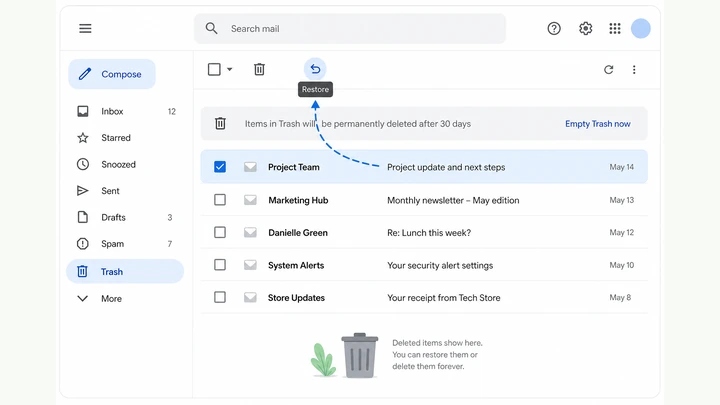
Things You'll Need
- A computer or phone browser where you can open gmail.com
- The Google account that originally received the missing email
- Rough deletion date, sender name, or subject line to search with
- About 10 quiet minutes — do not empty Trash while hunting
Where are you stuck?
Follow Start here for desktop Trash restore. If the email is not in Trash, you are on the wrong account, or you use the phone app, jump to the matching branch.
Start hereDesktop Gmail → Trash → find message → Move to Inbox
30-second preflight — all four checks must be YES.
Right account · sender/date hint · Trash not emptied · browser or app ready.
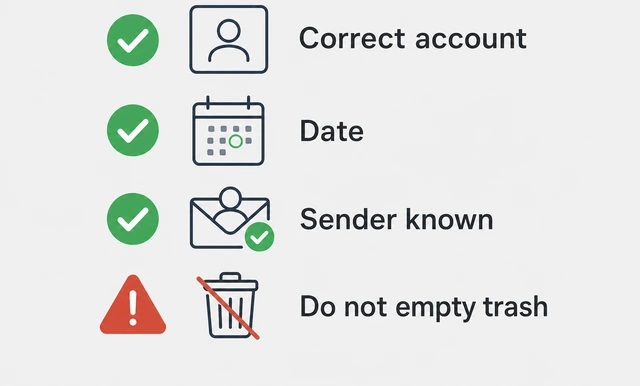
Searching the wrong account or emptying Trash mid-hunt permanently deletes what you need — a quick check saves minutes of false hope.
- Right account? You know which Google email received the message (work vs personal).
- Search hint? You have a rough sender, subject word, or deletion date to narrow Trash.
- Trash intact? You have not clicked Empty Trash today — stop if you already did.
- Device ready? Desktop browser at gmail.com — or jump to the mobile branch on phone only.
All four checks are YES — you are ready to open Gmail on desktop and confirm the signed-in account.
On your phone only? → Mobile app. All YES? Continue to Step 1.
Open Gmail and confirm the correct Google account.
gmail.com → check avatar / email in top-right — must match the account that got the message.
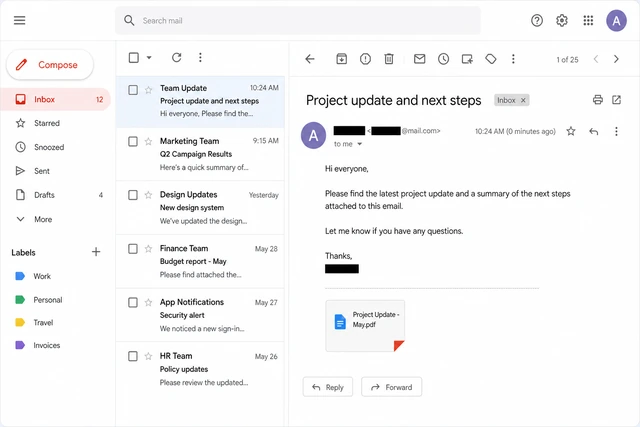
Trash is per account — searching a personal inbox when the mail landed in work Gmail is the most common "can't find it" mistake.
- On a computer browser, go to gmail.com and sign in if prompted.
- Click your profile avatar (top-right) and read the signed-in email address.
- Stop when the email matches the account that received the missing message.
You see the correct Gmail inbox for the account that should hold the deleted message.
Avatar shows the wrong email? → Wrong account.
Open Trash in the left sidebar.
Left sidebar → Trash — or More → Trash if Trash is hidden.
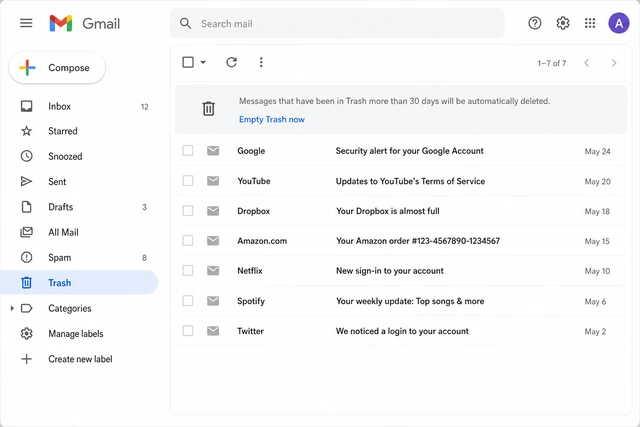
Deleted messages sit in Trash for about 30 days before Google purges them — this folder is the first place to look.
- In the left sidebar, look for Trash (sometimes labeled Bin).
- If you do not see it, click More at the bottom of the folder list to expand hidden labels.
- Click Trash — do not click Empty Trash now.
The Trash message list is open — you see deleted emails or an empty-state message.
Wrong account after opening Trash? → Wrong account.
Search or scroll Trash to find the deleted message.
Trash search: from:sender subject:keyword after:YYYY/MM/DD — or scroll to the deletion date.
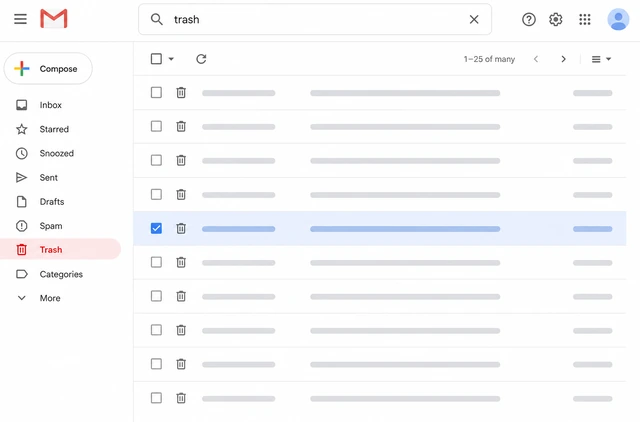
Trash can hold hundreds of items — a targeted search beats scrolling when you remember even one detail about the sender or subject.
- Click the search box at the top — Gmail searches inside Trash while you are in that folder.
- Try from:[email protected], subject:invoice, or after:2026/07/01.
- Click the matching row, or scroll by date if you know roughly when you deleted it.
You located a candidate message in Trash (highlighted row or search result).
Nothing matches? Continue to Step 8, or jump to Not in Trash.
Open the message and confirm it is the right one.
Open the row → read subject, sender, and first lines of the body before restoring.
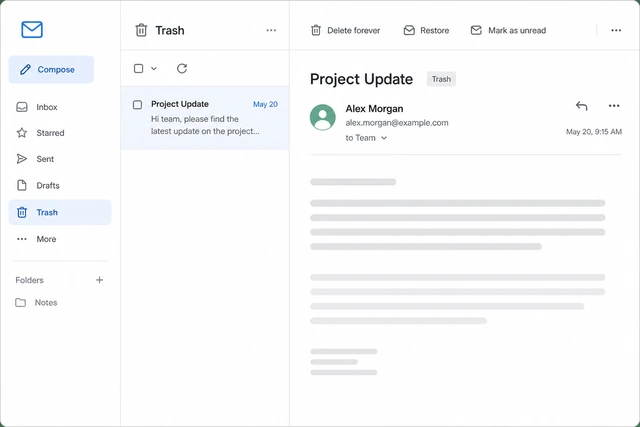
Similar subject lines and newsletter threads are easy to confuse — confirming now avoids restoring the wrong email.
- Click the message row to open the full email.
- Check the From address and Subject match what you expect.
- Skim the first paragraph — attachments and dates should look right.
You are viewing the correct deleted email and are ready to move it out of Trash.
Wrong message? Use Back to return to Trash and pick another row.
Move the message back to Inbox.
Toolbar → Move to Inbox — or Move to → Inbox on some layouts.
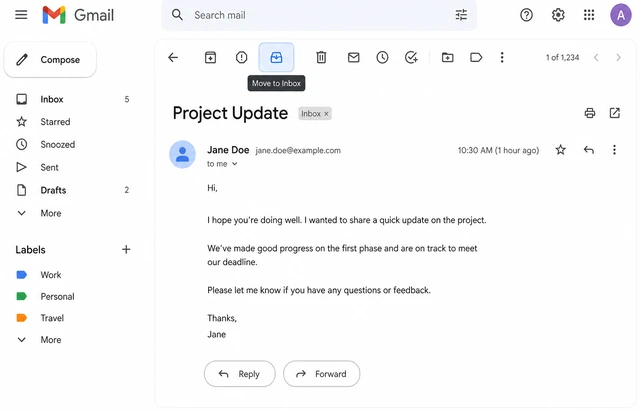
Moving to Inbox removes the delete label and puts the message back in your normal mail flow — it stays in All Mail either way.
- With the message open (or checkbox selected), click Move to Inbox.
- If you only see a folder icon, click Move to → Inbox.
- Wait for the brief "Moved to Inbox" confirmation — the message should leave Trash.
Gmail confirms the message moved to Inbox and it no longer appears in Trash.
Open Inbox and locate the restored message.
Click Inbox → find the restored email — search in:inbox from:sender if needed.
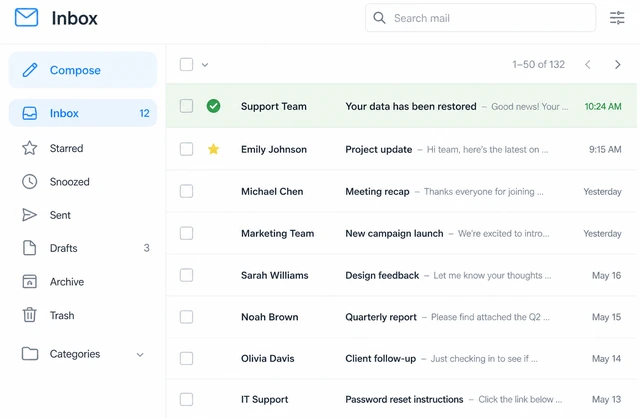
A successful restore should be visible in Inbox — if it is not, a filter or label may have rerouted it immediately.
- Click Inbox in the left sidebar.
- Look near the top for the restored subject line (sort by newest if needed).
- If hidden, search in:inbox from:[email protected] to confirm it landed.
The recovered email is visible in Inbox (or confirmed via an in:inbox search).
Restored then vanished again? Check Not in Trash for filter rules that auto-delete.
Star or label the message so you can find it again.
Click the star ★ or Label icon → create or pick a label like Recovered.

A star or label gives you a permanent bookmark — useful if the thread gets buried again or you need to reference it later.
- Open the restored message in Inbox.
- Click the star icon, or click Label → create Recovered.
- Optional: archive is fine — the star/label keeps it findable under that filter.
The message has a star or custom label you can click later to reopen it quickly.
Skip this step if you are done — recovery is already complete.
If not in Trash, check Spam and search All Mail.
No hit in Trash? → Spam folder → then All Mail search with from: and subject:.
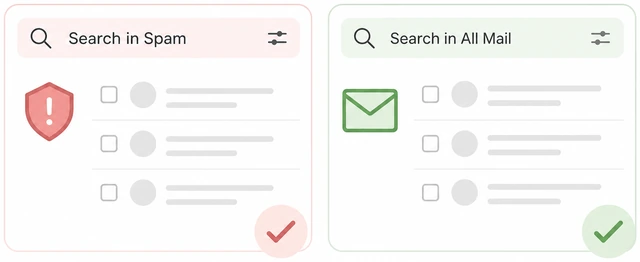
Messages deleted from Spam or archived out of Inbox never sit in Trash — All Mail search finds them when Trash is empty.
- If Trash had no match, click Spam and search the same from:/subject: terms.
- Still missing? Click All Mail and search from:sender subject:keyword.
- Found elsewhere? Select it → Not spam or Move to Inbox as appropriate.
You checked Spam and All Mail — the message is restored, or you know it is not in Trash and need a branch.
Still nowhere, or Trash was emptied weeks ago? → Not in Trash.
Not in TrashSpam → All Mail → filters — then know when it is gone
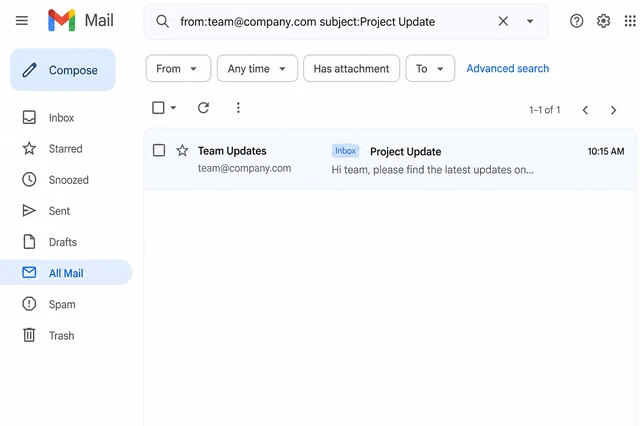
Search Spam and All Mail with the same operators.
Spam → search from:/subject: → All Mail → same search without in:trash.
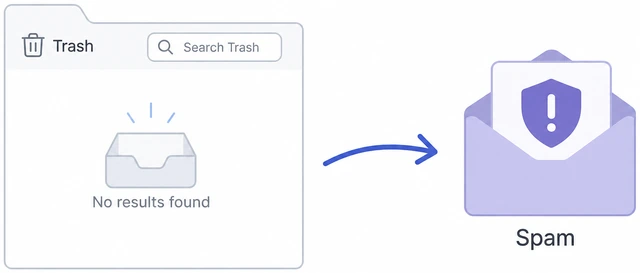
Archive and auto-filter moves skip Trash entirely — All Mail is the full mailbox index when Trash comes up empty.
- Open Spam — search from:sender or subject:keyword.
- If found in Spam, select → Not spam → Move to Inbox.
- Open All Mail and repeat the search — include has:attachment if relevant.
You searched Spam and All Mail with targeted operators and restored any match found.
Check filters and know when recovery is no longer possible.
Settings → Filters → delete auto-trash rules — past 30 days or emptied Trash = likely gone.
A filter that auto-deletes can remove mail again seconds after you restore — fixing the rule prevents a repeat loss.
- Click ⚙ → See all settings → Filters and Blocked Addresses.
- Delete or edit any filter that Delete it or skips Inbox for this sender.
- If Trash was emptied or the delete was >30 days ago, use Google Account help or your Workspace admin.
Filters reviewed — message recovered, or you know consumer Gmail cannot restore mail past Trash retention.
Work or school account? Ask your IT admin — org retention may hold copies longer than personal Gmail.
Wrong accountSwitch Google account → repeat Trash search
Switch to the Google account that received the email.
Avatar → Add account or pick the other email → wait for that inbox to load.
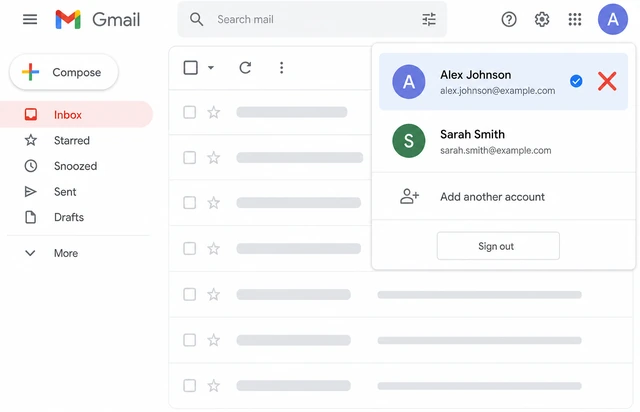
Each Google account has its own Trash — the message will never appear until you are signed into the mailbox that received it.
- Click your profile avatar (top-right on gmail.com).
- Select the other Google account, or Add account and sign in.
- Wait until that account's Inbox loads — confirm the email address in the avatar.
You are signed into the Google account that should have received the missing message.
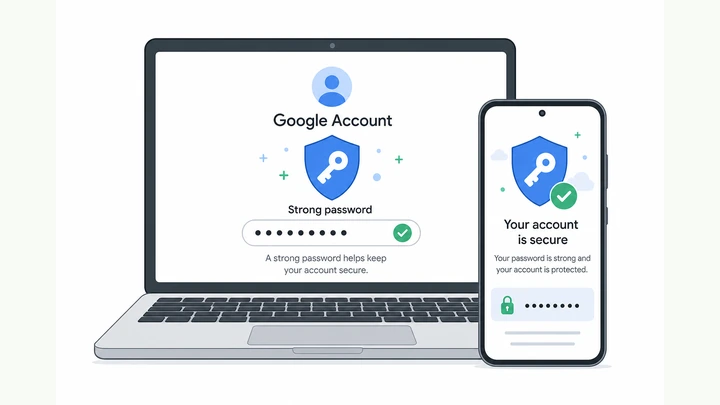
Login loops or password errors? See change Gmail password on a trusted device first.
Repeat Trash search on the correct account.
Trash on the new account → same from:/subject: search → Move to Inbox.
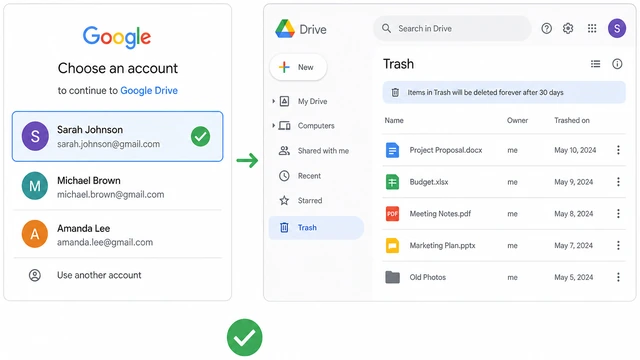
Once you are on the right account, the main-path Trash steps work the same — most "lost" mail was in another profile all along.
- Open Trash (More → Trash if hidden) on this account.
- Run the same from: / subject: search you tried before.
- Found it? Open → Move to Inbox — same as main-path Steps 4–6.
You searched Trash on the correct account and restored the message, or confirmed it is not there.
Still empty on every account you tried? → Not in Trash.
Mobile appGmail app → Menu → Trash → Move to Inbox
Open the Gmail app, confirm account, and open Trash.
Gmail app → ☰ Menu → confirm avatar → Trash (or Bin).
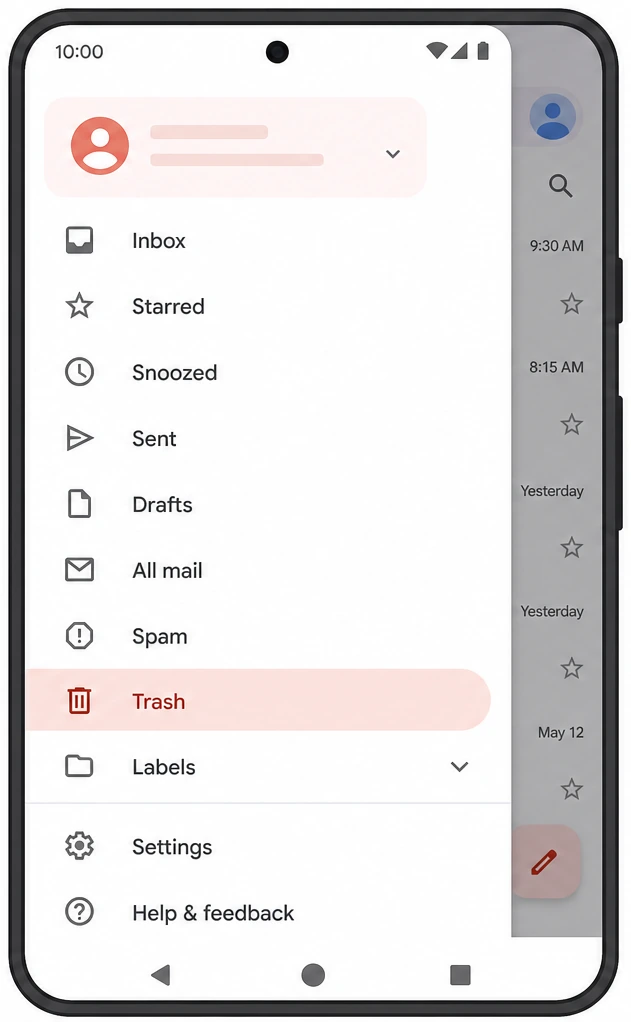
Trash is buried under the hamburger menu on mobile — opening it there mirrors desktop Trash with the same 30-day retention.
- Open the Gmail app and tap your profile icon — pick the right account.
- Tap the ☰ menu (top-left) to expand folders.
- Scroll and tap Trash — do not tap Empty bin / Empty Trash.
Trash is open in the Gmail app on the correct account.
Wrong account? Switch via the profile icon, then reopen Trash.
Find the message and move it to Inbox.
Search or scroll Trash → open message → ⋮ or Move → Inbox.
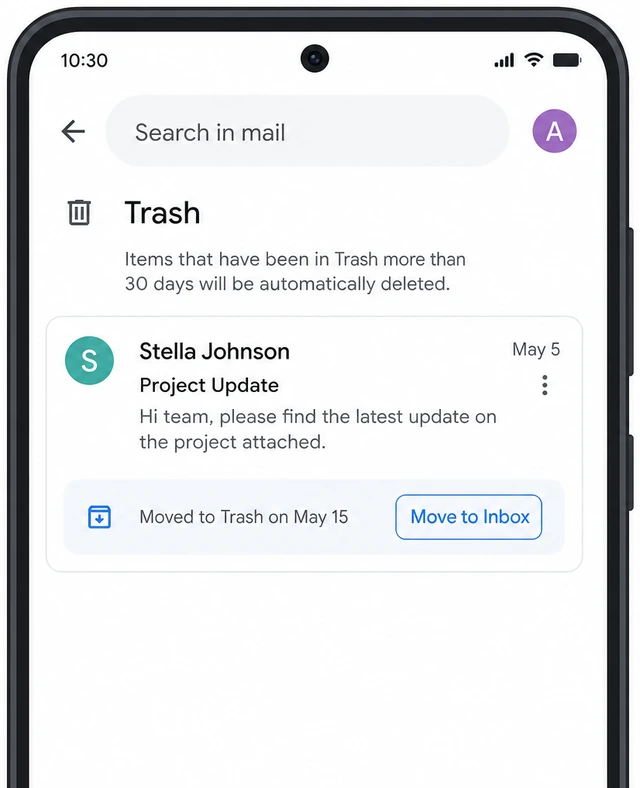
Mobile uses the same Trash backend as desktop — Move to Inbox puts the message back in your normal inbox on every device.
- Use the search icon with in:trash from:sender, or scroll to the deletion date.
- Tap the message → tap ⋮ (More) → Move to Inbox.
- Switch to Inbox and confirm the email appears — star it if you want a bookmark.
The message is back in Inbox on your phone (and syncs to desktop when you open gmail.com).
Not in mobile Trash either? → Not in Trash on a computer for All Mail and filters.
When to get help
- Ask a trusted person to sit with you for Steps 2–5 so you open Trash and restore the right message without emptying it.
- Personal Gmail deleted or Trash emptied more than ~30 days ago? Google cannot undelete it — try All Mail once, then stop searching.
- Work or school Google account? Contact your IT admin with sender, subject, and date — org retention may still hold a copy.
When This Doesn't Work
- Trash emptied or deleted more than ~30 days ago (personal Gmail). Consumer Gmail does not offer an undelete after Trash retention expires. Try All Mail and Spam once, then accept the message is likely gone.
- Google Workspace (work or school) account. Your admin may retain deleted mail longer than 30 days. Contact IT with the sender, subject, and approximate date — they may recover from admin tools.
- Email deleted by a filter or third-party app. Check Settings → Filters and revoke any app with Gmail delete access under Google Account → Security → Third-party access.
Warnings
- Do not click Empty Trash or Empty bin while searching — that permanently deletes every message in Trash.
- Restoring mail from Spam does not guarantee future delivery — add the sender to contacts if newsletters keep landing in Spam.
- A filter set to Delete can remove the message again seconds after you restore it — review filters before calling recovery done.
- Phishing emails pretending to be "Gmail recovery" are common — only use gmail.com or the official Gmail app, never a link from an unknown email.
Tips
- Use search operators: from:, subject:, after:YYYY/MM/DD, and has:attachment narrow Trash fast.
- After recovery, star important mail or apply a label — it beats searching Trash twice.
- If you juggle multiple Google accounts, note which email received important receipts and confirmations when you sign up.
FAQ
How long does Gmail keep deleted emails in Trash?
About 30 days for most personal Gmail accounts. After that, Google automatically purges Trash unless you emptied it manually first.
Can I recover an email after I emptied Trash?
Usually not on personal Gmail. Check All Mail and Spam once in case it was archived, not deleted. Workspace users should ask their admin.
Does restoring on my phone also restore on my computer?
Yes. Gmail syncs across devices — Move to Inbox on the app updates the same mailbox you see at gmail.com.
Comments
Questions, corrections, and what worked for you. Comments are reviewed before they appear.