How to Clear Chrome Browser Cache
Clear cached images and files in Google Chrome on desktop in about five minutes — open Clear browsing data, pick a time range, keep cookies if you want to stay signed in, then hard-reload the problem site. Read one step at a time and finish each before the next. Start with the 30-second preflight. Signed out of everything? See cookies logout. Page still looks old? See still stale. On Android or iPhone? See phone Chrome.
Tips for reading this guide
- One step at a time. Read the green caption, the Why line, then the bullets.
- Move on when the green done line is true — then go to the next step.
- Cache is saved copies of images and page files — clearing it fixes stale layouts without erasing passwords.
- Cookies keep you signed in — leave that box unchecked unless you are OK logging into every site again.
- Signed out everywhere, page still old, or on a phone? Jump to the matching branch below.
- Need a helper? Ask someone you trust to sit with you for Steps 3–5 so the right boxes stay checked.
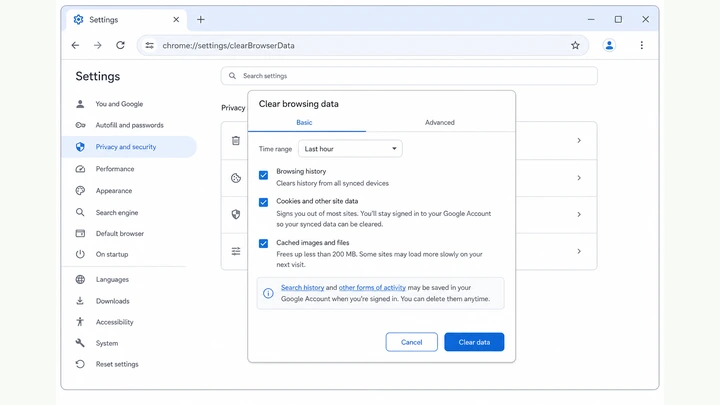
Things You'll Need
- Google Chrome open on a Windows or Mac computer (not Microsoft Edge unless you meant Edge)
- The website tab that looks stale, broken, or won't load updates
- About five quiet minutes — do not clear data while rushing through checkboxes
- Your login passwords handy only if you choose to clear cookies (optional)
Where are you stuck?
Follow Start here for desktop Chrome cache clearing. If you got logged out, the page is still stale, or you are on a phone, jump to the matching branch.
- I want to clear Chrome cache on my computer Clear browsing data → cached files
- I cleared data and got signed out of everything Sign back in · cache-only next time
- The page still looks old after I cleared cache Incognito test · per-site data
- I need to clear cache on phone Chrome Menu → Delete browsing data
Start hereClear browsing data → cached files only → hard-reload → confirm
30-second preflight — all three checks must be YES.
Chrome open · desktop path · cache-only vs cookies · problem tab ready.
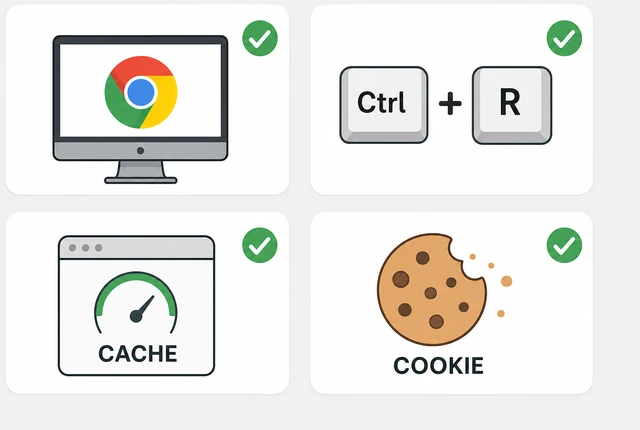
Clearing the wrong boxes signs you out of every site — knowing cache vs cookies before you click saves a round of panic logins.
- Desktop Chrome? Windows or Mac — not Edge. Phone? Use the Phone Chrome branch below.
- Cache-only? You fix a stale page — not every login — unless re-signing in is OK.
- Problem tab open? Keep the stale site in a tab for a hard-reload right after clearing.
All three checks are YES — you know desktop Chrome, your cookie choice, and which tab to test next.
All YES? Continue to Step 1.
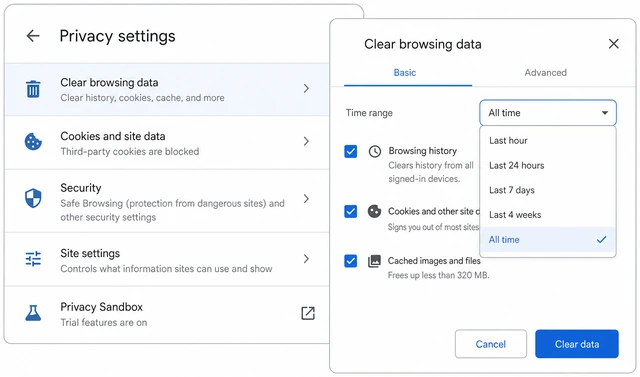
Open Chrome's Clear browsing data dialog.
Ctrl+Shift+Delete (Mac: Cmd+Shift+Delete) — or Settings → Privacy → Clear browsing data.
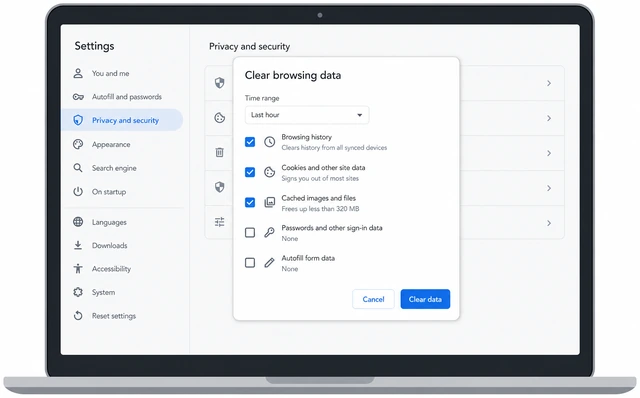
The dialog is the only place Chrome lets you delete cached files in bulk — bookmarks and saved passwords live elsewhere.
- Click the Chrome window so it is active.
- Press Ctrl+Shift+Delete (Mac: Cmd+Shift+Delete).
- No dialog? ⋮ → Settings → Privacy → Clear data.
The Clear browsing data dialog is open on screen.
Clear data button grayed out? Your employer may manage Chrome — see When This Doesn't Work.
Set the time range for what to delete.
Time range → Last hour, 24 hours, 7 days, or All time.
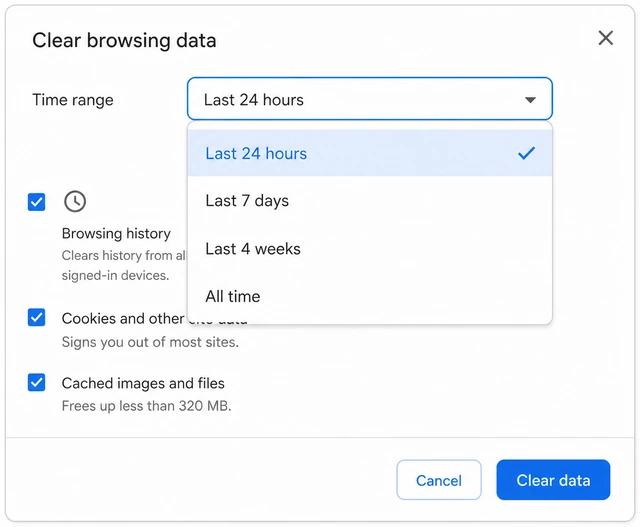
A narrow range fixes a glitch from today; All time reaches older cached files when a site has looked wrong for weeks.
- At the top of the dialog, open the Time range dropdown.
- Pick Last hour or Last 24 hours if the problem just started.
- Pick All time if the page has been stale for days or you already tried a shorter range.
The time range matches how long the site has looked wrong.
Check Cached images and files — leave history alone unless intended.
Check Cached images and files · leave Browsing history unchecked.
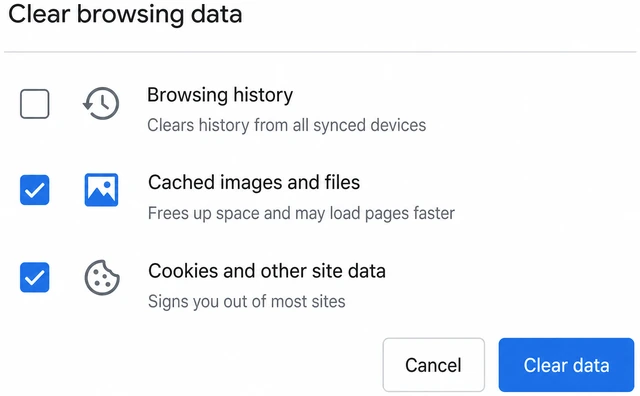
Cache holds old page copies; history is your address list — mixing them up erases visits you may still need.
- Check Cached images and files.
- Leave Browsing history unchecked unless you want your visit list erased too.
- Scan the list once — only boxes you mean to clear should be checked.
Cached images and files is checked and history boxes match your intent.
Leave Cookies unchecked unless re-login on every site is OK.
Cookies unchecked = stay signed in · checked = every site asks for password again.
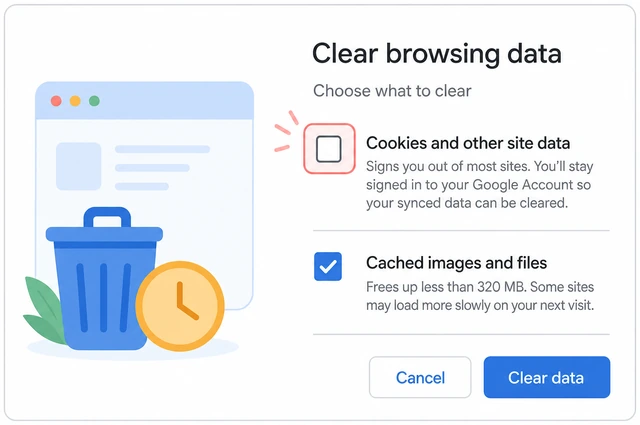
Cookies store login sessions — clearing them fixes some sites but signs you out of Gmail, banking, and shopping accounts.
- Find Cookies and other site data.
- Leave it unchecked for a cache-only fix — you stay signed in.
- Check it only if you accept logging into every site again or a site told you to clear cookies.
You made a conscious cookie choice — unchecked to stay signed in, or checked knowing logouts are coming.
Already signed out everywhere? → Cookies logout.
Click Clear data and wait for the dialog to close.
Clear data → wait until the dialog closes — no error banner.
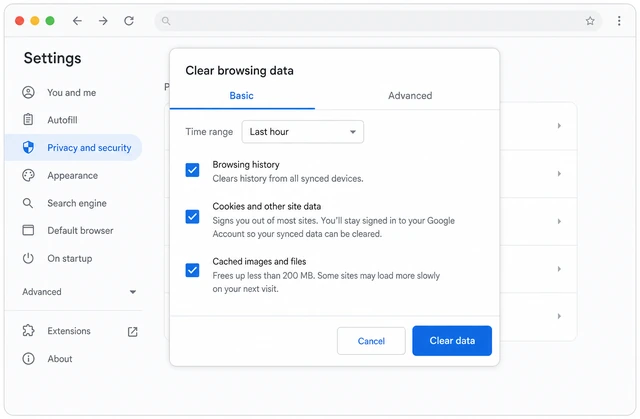
Chrome needs a moment to delete files — closing early or double-clicking can leave stale cache behind.
- Click Clear data once.
- Wait until the dialog closes on its own — usually a few seconds.
- If an error appears, note the message and try again after closing other heavy tabs.
The dialog is gone and Chrome shows no error about clearing data.
Hard-reload the problem site tab.
Switch to the problem tab → Ctrl+F5 (Mac: Cmd+Shift+R).
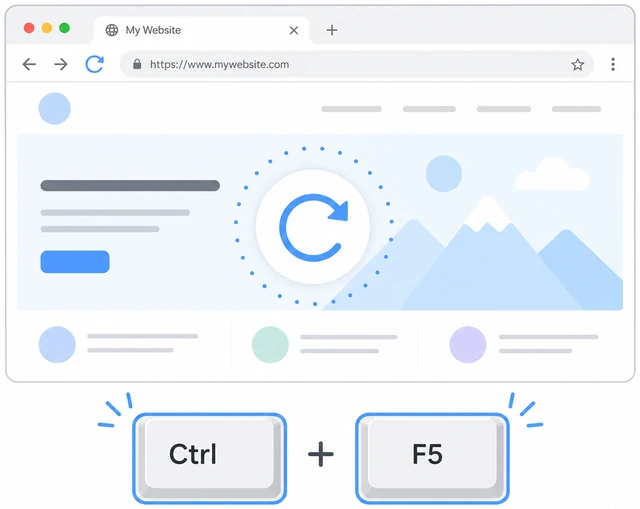
A normal refresh sometimes reuses leftover cache — a hard reload forces Chrome to download fresh files.
- Click the tab with the stale or broken site.
- Press Ctrl+F5 (Windows) or Cmd+Shift+R (Mac).
- Wait until the page finishes loading — spinner or blank screen should clear.
The problem tab finished reloading after a hard refresh.
Need proof for IT? Take a screenshot on Windows before and after.
Confirm the site looks updated and logins still work.
Fresh layout or fixed error · account name still shows if cookies were kept.

Cache clears are only successful when the page actually changes and you did not accidentally wipe sessions.
- Check that images, prices, or error banners look current — not yesterday's version.
- If you kept cookies, confirm you are still signed in (avatar or name visible).
- Try one action that failed before — submit a form or open a menu that was broken.
The site behaves as expected and you are still signed in if you left cookies unchecked.
Page still looks old? → Still stale.
Retry with All time or escalate if the page is still stale.
Still wrong? All time + hard-reload · or Incognito test · then still-stale branch.
Some sites hide files in service workers or per-site storage — a second pass or targeted branch catches what bulk cache clear missed.
- Reopen Clear browsing data, set All time, same checkboxes, clear again.
- Hard-reload the tab once more, or open the site in an Incognito window as a quick test.
- If content is still old, jump to Still stale instead of clearing cookies blindly.
The site is fixed, or you have moved to the still-stale branch with a clear next action.
Managed work Chrome still blocked? Contact IT — do not keep clicking grayed-out buttons.
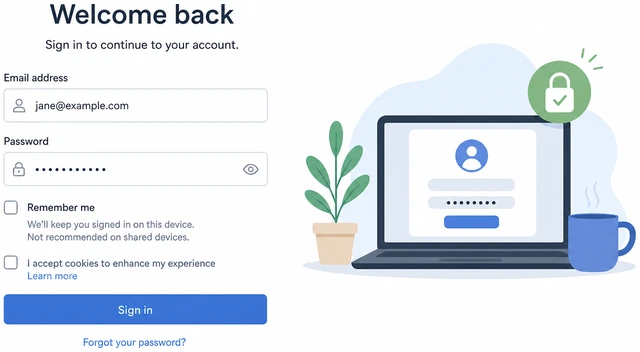
Cookies logoutSigned out everywhere — sign back in and avoid it next time
Sign back into each site with your normal password.
One site at a time — email + password → complete 2FA if asked.

Clearing cookies removed saved sessions — the data is not gone, but each site needs a fresh login.
- Start with accounts you use daily — email, bank, shopping.
- Enter your email and password on each site's sign-in page.
- Complete 2FA or a security code if the site asks — that is normal after a cookie wipe.
Your main accounts open again without error loops.
Forgot a password? Use that site's Forgot password link — do not guess until the account locks.
Next time, clear cache only — leave Cookies unchecked.
Cached images and files ✓ · Cookies and other site data ✗.
Most stale-page fixes need only cached files — keeping cookies preserves logins while still refreshing layouts.
- Open Clear browsing data again when a page looks old.
- Check Cached images and files only.
- Leave Cookies and other site data unchecked before you click Clear data.
You know the cache-only checkbox pattern for the next stale-site fix.
One site still broken after cache-only clear? That site may need its own cookies cleared — sign in again just on that site.
Still stalePage still shows old content after cache clear
Clear All time, hard-reload, and test in Incognito.
All time clear → Ctrl+F5 → open same URL in Incognito.

Incognito ignores most saved data — if the page looks right there, leftover site storage on your normal profile is the culprit.
- Run Clear browsing data — All time, Cached images and files checked.
- Hard-reload the tab, then open the same URL in an Incognito window.
- Compare both windows — fresh in Incognito but stale in normal Chrome means per-site data is stuck.
You know whether Incognito shows the updated page while your normal window does not.
Clear site data for that one website.
Padlock → Site settings → Clear data · or chrome://settings/siteData → search domain.
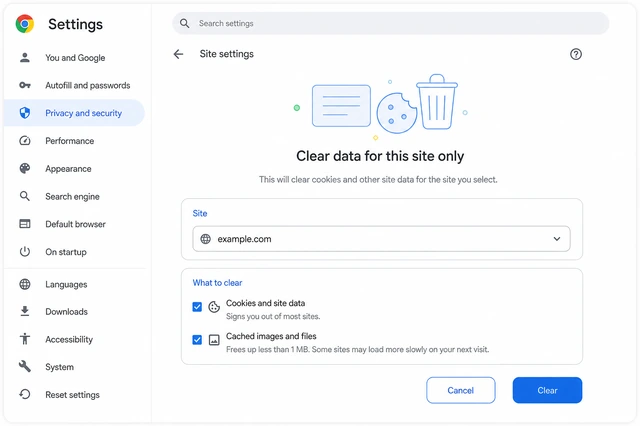
Service workers and per-site storage survive a general cache clear — wiping one origin fixes stubborn sites without nuking every login.
- On the tab, click padlock → Site settings → Clear data.
- Or open chrome://settings/siteData, search the site's domain, and remove that entry.
- Reload the page and sign in again only on that site if prompted.
The stubborn site loads fresh content after its site-specific data was cleared.
Still stale on a work laptop? Screenshot the issue and contact IT — managed Chrome or a proxy may be caching for you.
Phone ChromeClear cache on Android or iPhone Chrome app
Open Chrome's menu and reach Delete browsing data.
Chrome app → ⋮ → History → Delete browsing data (or Settings → Privacy).
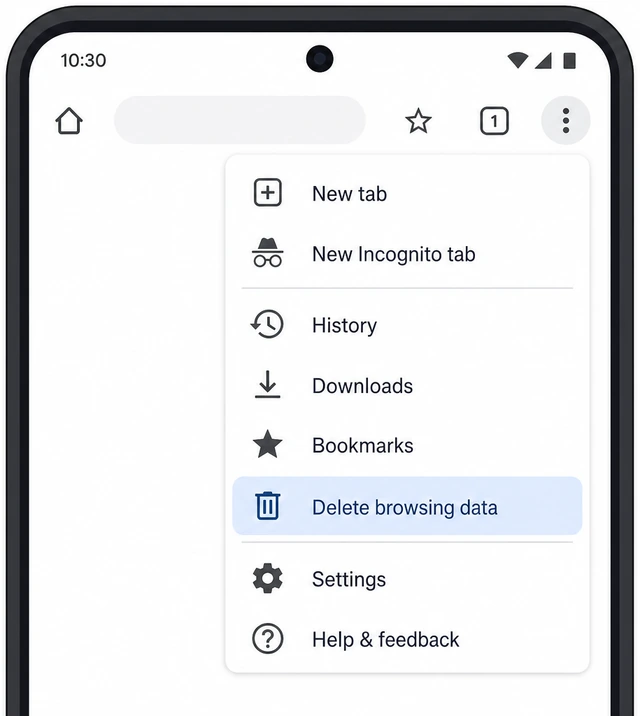
Phone Chrome hides the dialog under the menu — there is no Ctrl+Shift+Delete shortcut on touch screens.
- Open the Chrome app (colorful circle icon — not Safari or Samsung Internet).
- Tap ⋮ (Android) or ⋯ (iPhone) in the corner.
- Tap History → Delete browsing data (or Settings → Privacy → Clear browsing data).
You see the phone Delete browsing data screen with time range and checkboxes.
Clear cached images — keep cookies if you want to stay signed in.
Time range → Cached images and files ✓ · Cookies ✗ → Clear data.
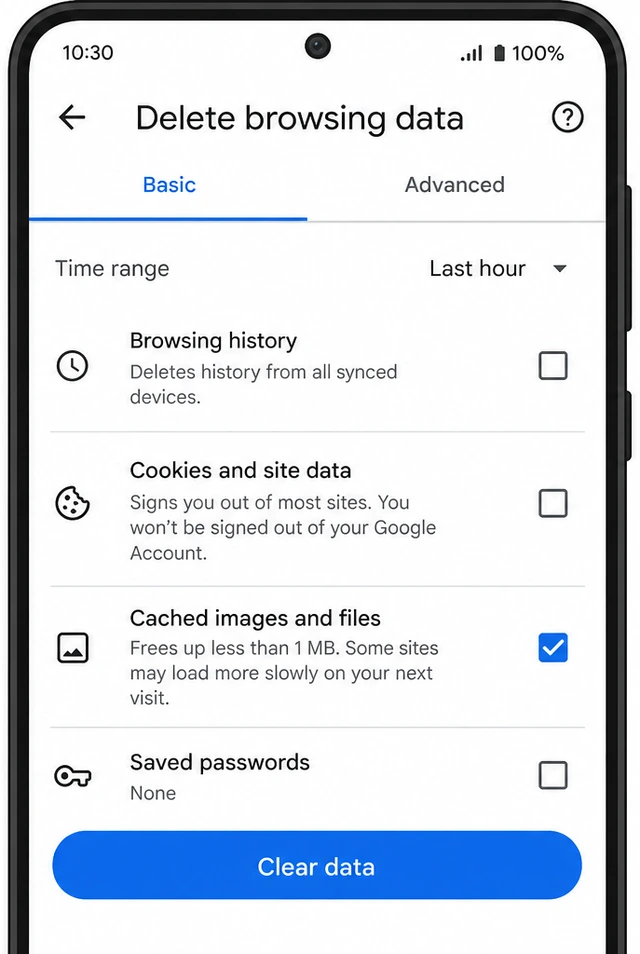
The same cookie caution applies on phones — clearing cookies logs you out of every app-linked site on that device.
- Set a Time range — use All time if the page has been wrong for days.
- Check Cached images and files; leave Cookies unchecked unless re-login is OK.
- Tap Clear data, reopen the site, and pull down to refresh.
The phone site reloads with updated content and you are still signed in if cookies were kept.
Signed out on phone too? → Cookies logout. Still stale? → Still stale on desktop may help for the same account.
When to get help
- Ask a trusted person to sit with you for Steps 3–5 so Cookies stays unchecked if you want to remain signed in.
- If you forgot a password after a cookie wipe, use that site's account recovery — do not guess until the account locks.
- On a work or school laptop, contact IT when Clear data is grayed out or a VPN site stays stale after every clear.
- Need a screenshot for support? See <a href="/how-to-take-a-screenshot-on-windows/">How to Take a Screenshot on Windows</a>.
When This Doesn't Work
- Clear data button is grayed out. Work or school Chrome may be managed by your organization. Ask IT to clear cache or approve the action — this guide assumes a personal profile you control.
- You meant Microsoft Edge, not Chrome. Edge uses a similar dialog (Ctrl+Shift+Delete) but different menu paths. Confirm the browser icon — Chrome is red/yellow/green/blue; Edge is a blue-green wave.
- Only one site on a work VPN looks stale. A corporate proxy may cache pages before they reach your laptop. Screenshot the issue and contact IT instead of clearing cookies on a managed device.
Warnings
- Do not check Cookies and other site data unless you are ready to sign into every site again — that includes email and banking.
- Clearing Browsing history does not fix stale pages but erases your address-bar history — leave it unchecked for a cache-only fix.
- Never clear data on a shared or public computer and walk away — sign out of accounts manually afterward.
- If a pop-up or stranger on the phone told you to clear cache, close the tab first — scams use fake "virus" warnings to rush you.
Tips
- Bookmark important pages before clearing All time — history is separate, but bookmarks survive any cache clear.
- If one site always breaks after updates, clear site data for that domain only instead of wiping cache for every site.
- Chrome syncs some settings across devices — a phone clear does not fix desktop cache; run the matching path on each device you use.
FAQ
What is the difference between cache and cookies?
Cache stores copies of images and page files so sites load faster. Cookies store login sessions and site preferences. Clearing cache fixes stale layouts; clearing cookies signs you out.
Will clearing cache delete my passwords?
No. Saved passwords live in Chrome's password manager unless you explicitly check Passwords and other sign-in data. This guide leaves that box unchecked.
How often should I clear Chrome cache?
Only when a site looks broken or stuck on old content — routine daily clearing is unnecessary and slows browsing until sites rebuild cache.


Comments
Questions, corrections, and what worked for you. Comments are reviewed before they appear.