How to Pair Bluetooth Headphones
Pair Bluetooth headphones or earbuds to your iPhone or Android in about ten minutes — charge, turn Bluetooth on, enter pairing mode, tap the name, confirm Connected, then play a short test sound. Read one step at a time and finish each before the next. Start with the 30-second preflight. Headphones never show in the list? See not appearing. They keep joining another phone or computer? See connected elsewhere. Status says Connected but you hear nothing? See no sound.
Tips for reading this guide
- One step at a time. Read the green caption, the Why line, then the bullets.
- Move on when the green done line is true — then go to the next step.
- Pairing mode means the headphones are discoverable — usually a flashing light or a voice that says “pairing.”
- iPhone vs Android: both use Settings → Bluetooth (Android may say Connected devices first).
- Name missing, pairs to the wrong phone, or Connected but silent? Jump to the matching branch below.
- Need a helper? Ask someone you trust to sit with you for Steps 3–7 so pairing mode and the phone taps stay in sync.
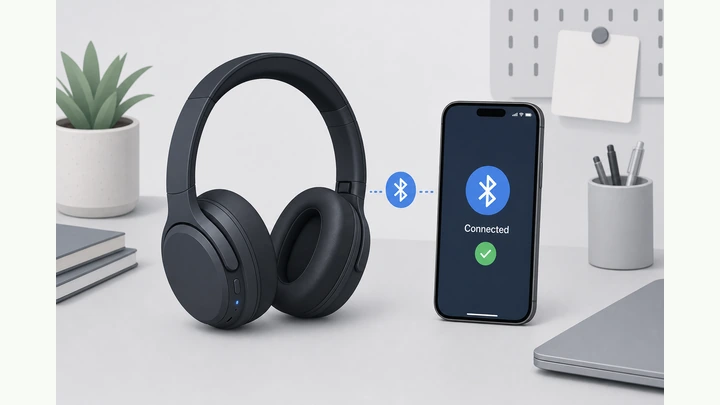
Things You'll Need
- Wireless Bluetooth headphones or earbuds (any brand)
- Your unlocked iPhone or Android phone
- Charging case or cable so the headphones have battery
- About ten quiet minutes near the phone (within a few feet)
- Owner’s manual or box lid if you need the pairing-button tip (optional)
Where are you stuck?
Follow Start here for a first Bluetooth pair on iPhone or Android. If the name never appears, another device steals the link, or Connected has no sound, jump to the matching branch.
- I want to pair headphones for the first time Bluetooth on · pairing mode · tap name
- My headphones never show in the Bluetooth list Longer pairing hold · toggle Bluetooth
- They keep connecting to another phone or laptop Turn other Bluetooth off · Forget · re-pair
- They say Connected but I hear no sound Media volume · audio output · pause/play
Start hereCharge → Bluetooth on → pairing mode → tap name → Connected → test sound
30-second preflight — all three checks must be YES.
Charged headphones · phone unlocked · know the power / pairing button.
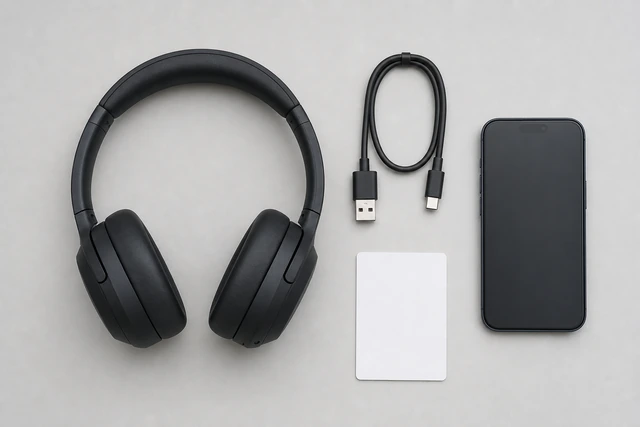
Dead batteries and a locked phone waste the whole pairing wait — these three checks prevent a false “nothing appears” moment.
- Headphones charged? Case light on, or buds feel awake when you open the lid.
- Phone unlocked? You can open Settings without Face ID or PIN blocking you mid-tap.
- Button located? Know the power or Bluetooth button — check the box if unsure.
All three checks are YES — battery, unlocked phone, and button location are ready.
All YES? Continue to Step 1. Airplane Mode must stay OFF — it blocks Bluetooth.
Charge or confirm the headphones have enough battery.
Case lid closed on charger · or headphones plugged in until a light shows power.
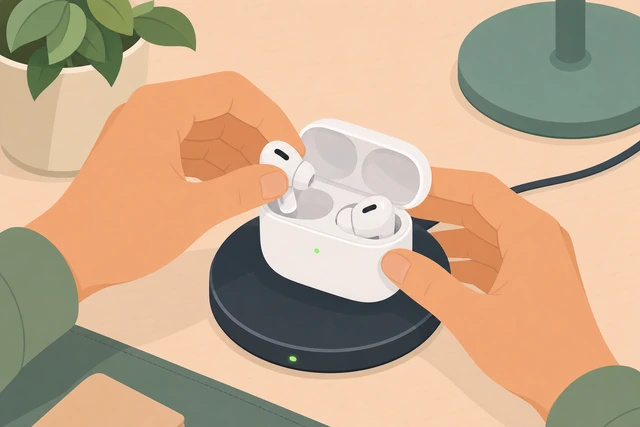
Headphones that are almost empty often power on but never stay in pairing mode long enough to appear.
- Place earbuds in the case and close the lid on a charger for a few minutes if the light was dark.
- For over-ear models, plug in USB until an LED or screen shows charge.
- Power them on briefly — if they stay quiet and dark, charge longer before Step 3.
The headphones can power on (light, voice, or case charge indicator).
Turn Bluetooth ON in phone Settings.
Settings → Bluetooth → toggle ON (Android: Settings → Connected devices → Bluetooth).
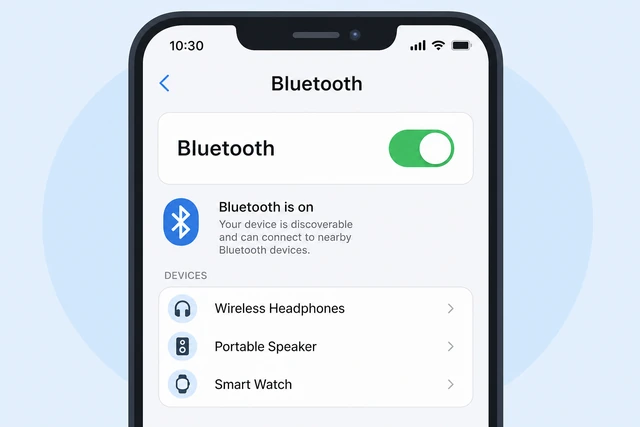
The phone only looks for new headphones when Bluetooth is on — Airplane Mode or a blue toggle off hides every device.
- iPhone: open Settings → tap Bluetooth → turn the switch ON (green).
- Android: Settings → Connected devices (or Bluetooth) → turn Bluetooth ON.
- Stay on the Bluetooth screen — do not lock the phone yet.
Bluetooth shows ON and the phone is scanning or ready for devices.
Phone UI art may later use a portrait crop; keep this landscape file as the master asset.
Put the headphones in pairing (discoverable) mode.
Hold power / Bluetooth button · or open case with both earbuds inside — wait for pairing flash or voice.
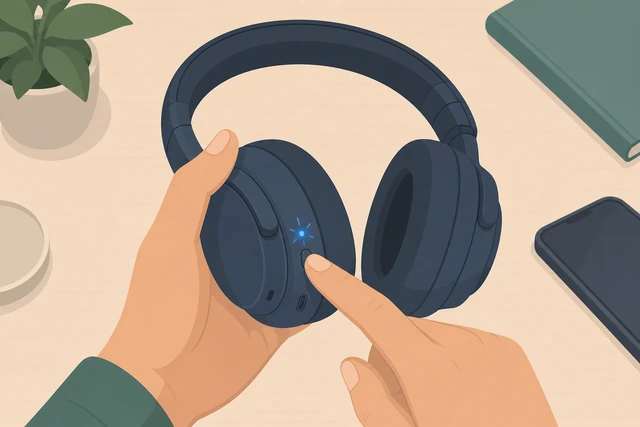
Just turning headphones on is not enough — they must enter pairing mode or the phone never shows them as new.
- Over-ear: hold the power or Bluetooth button about 5–10 seconds until a light flashes or a voice says pairing.
- Earbuds: put both buds in the open case (lid open) and hold the case button if your model has one.
- Keep the headphones a few feet from the phone — still flashing when you start Step 4.
You see a pairing flash or hear a pairing voice prompt — they are discoverable.
Nothing flashes and no name later? → Not in the list.
Wait for the headphone name in Other Devices / Available.
Watch Other Devices (iPhone) or Available / New devices (Android) — brand or model name appears.
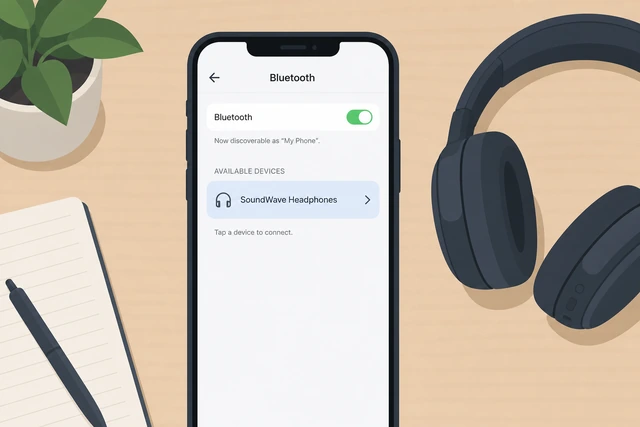
The phone needs a few seconds to scan — leaving too early looks like “it never appears” when it just needed more time.
- Keep the Bluetooth screen open and wait up to 30–60 seconds.
- Look for your brand or model name (for example Sony, Bose, AirPods, or JBL).
- If the list stays empty, re-enter pairing mode, then retry — or use the not-appearing branch.
The headphone name is visible in the phone’s Bluetooth list.
Still missing after a full minute? → Not in the list. Portrait crop OK later for this UI screen.
Tap the headphone name once on the phone.
Tap the matching name once — spinning wheel or “Connecting…” may appear briefly.
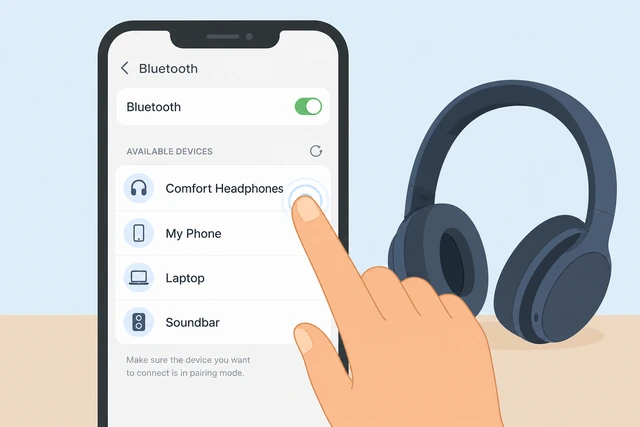
Tapping starts the handshake — tapping a nearby speaker or old pair by mistake connects the wrong device.
- Confirm the name matches your headphones — not a TV, speaker, or car.
- Tap the name once and wait a few seconds.
- If it disappears or joins another gadget, jump to the wrong-device branch.
The phone shows Connecting, Pairing, or jumps to a Pair / Allow prompt.
Keeps flipping to another phone or laptop? → Wrong device.
Confirm Pair, Join, or Allow on any prompt.
Tap Pair / Join / Allow · rare PIN: try 0000 or 1234 only if the manual says so.
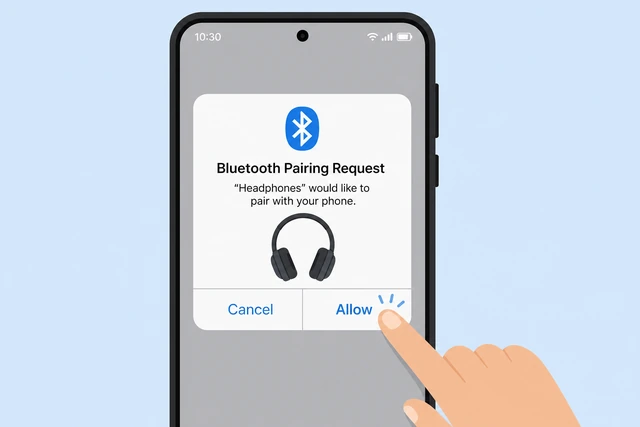
Modern headphones rarely need a code — ignoring the prompt leaves them half-paired and silent.
- If a dialog appears, tap Pair, Join, or Allow.
- If Contacts or notifications sharing is offered, choose what you want — or decline and continue.
- If a number pad appears and you do not know the code, see Exceptions — then reset per the manual.
Any Pair / Allow prompt is accepted (or none appeared and pairing continued).
Phone dialog screens may use a portrait crop later; filename stays this landscape webp.
Confirm the status label shows Connected.
My Devices / Paired devices → your headphones → Connected (not just Not Connected).
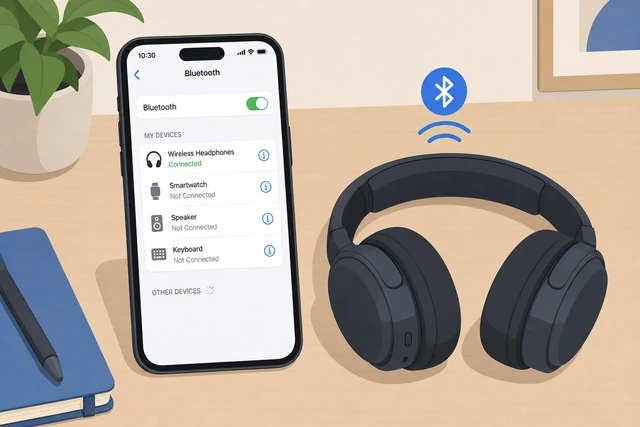
Paired and Connected are different — a saved name with Not Connected still plays music on the phone speaker.
- Find the headphones under My Devices (iPhone) or Paired devices (Android).
- Confirm the line says Connected (battery icon is a bonus, not required).
- Says Not Connected? Tap the name once to reconnect — do not start a new pair yet.
The headphones clearly show Connected on the Bluetooth screen.
Connects then drops to another nearby device? → Wrong device.
Play a short song or video and listen in the headphones.
Play 10–15 seconds of audio · sound should come from the headphones, not the phone speaker.
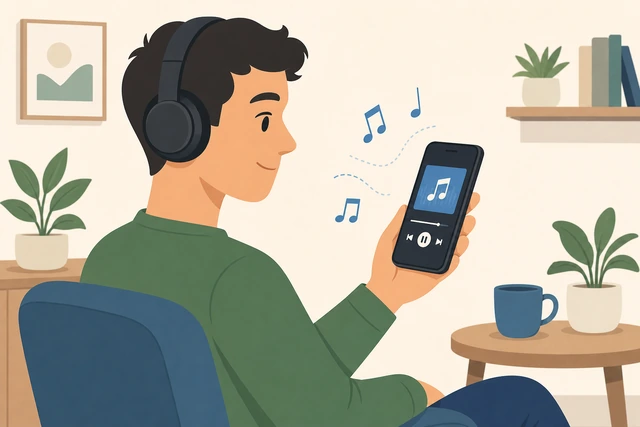
Connected status alone is not success — a quick listen proves the phone’s audio output switched over.
- Open Music, YouTube, or any video app and press play.
- Raise media volume a little — Bluetooth uses media volume, not the ringer alone.
- Put the headphones on and confirm you hear the audio in both ears (or the one earbud you are testing).
You clearly hear playback from the headphones.
Connected but silent? → No sound.
Note how to reconnect next time (no full re-pair).
Next time: Bluetooth ON → tap the same name under My Devices · open the case to wake earbuds.
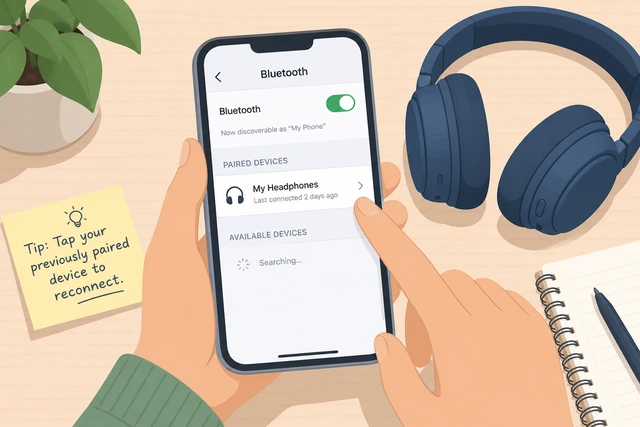
After the first pair, you reconnect from the saved list — holding the pairing button again can confuse two phones.
- Remember: turn Bluetooth ON, then tap the name under My Devices / Paired devices.
- For earbuds, open the case near the phone so they wake and reconnect.
- Only use pairing mode again if you Forget the device or set up a different phone.
You know the reconnect path without holding the pairing button every time.
Optional: forget old pairs that clutter the list.
Optional cleanup · i → Forget This Device (iPhone) · gear → Forget / Unpair (Android) — or skip.
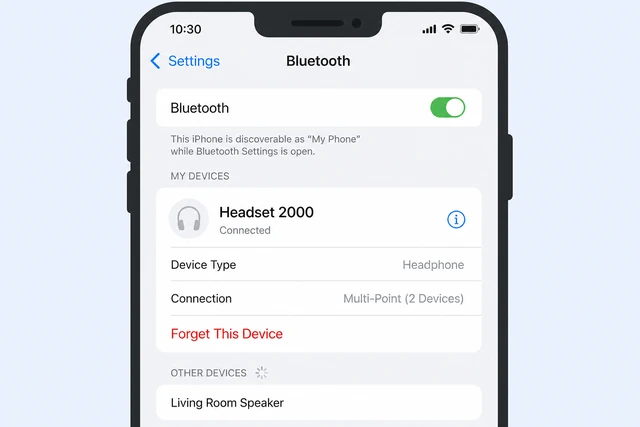
Old ghost entries and a second phone’s stale pair often steal reconnects — a clean list makes the right name easy to tap.
- Skip this step if your list is short and the headphones reconnect cleanly.
- iPhone: tap the i beside an unused old device → Forget This Device → confirm.
- Android: tap the gear beside an unused device → Forget or Unpair.
Your list is clear enough, or you chose to skip cleanup because reconnect already works.
Wrong device keeps winning after Forget? → Wrong device.
Not in the listHeadphones never show under Other Devices / Available
Re-enter pairing mode longer and move closer.
Power off → pairing hold 8–15 sec · open case lid · stay within arm’s reach of the phone.
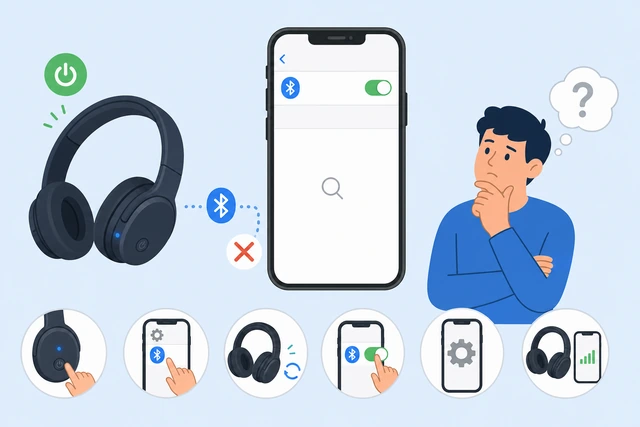
Many models need a longer button hold than a simple power-on — and walls between rooms kill weak discovery.
- Turn the headphones fully off, then hold the pairing button until the light flashes fast (often 8–15 seconds).
- Earbuds: both buds in the open case; hold the case button if the manual shows one.
- Keep the headphones within about 3 feet of the phone with no metal case in between.
Pairing flash or voice is on again and the headphones sit next to the open Bluetooth screen.
Toggle Bluetooth off/on, then try another phone if needed.
Bluetooth OFF 10 sec → ON · rescan · still blank? try a second phone or factory reset per manual.
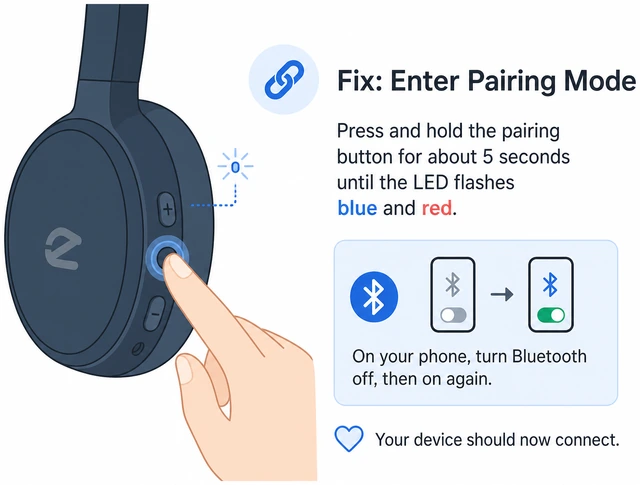
A stuck Bluetooth radio on the phone skips new devices — a toggle refresh or a second phone tells you whose side failed.
- Turn Bluetooth OFF, wait 10 seconds, turn it ON, and watch the list again.
- If still blank, try pairing to a second phone or tablet you trust.
- Appears elsewhere only? Reset the headphones per the manual, then return to Start here Step 3.
The name appears after the toggle, or you know to reset / escalate with a second-device test.
Still invisible on every phone after a factory reset? Contact the manufacturer or the store — the radio may be faulty.
Wrong devicePairs, then drops — or keeps joining another phone or computer
Turn Bluetooth off on other nearby devices.
Other phones, tablets, TVs, and laptops → Bluetooth OFF · then reconnect on your phone.
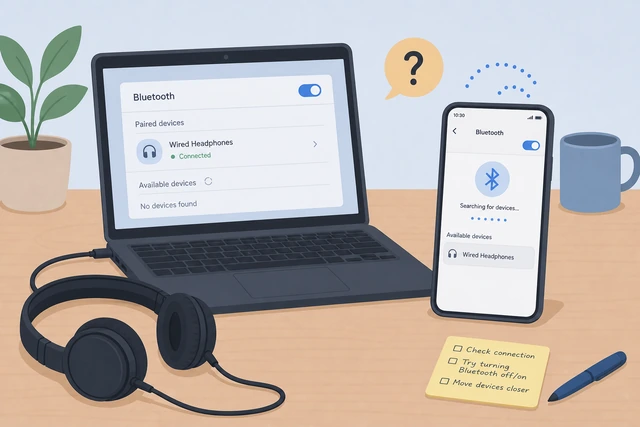
Multi-pair headphones often auto-join the last device that is still on — your phone loses the race until rivals sleep.
- On every other phone, tablet, laptop, or smart TV nearby, turn Bluetooth OFF.
- On your phone, open Bluetooth and tap the headphone name under My Devices / Paired devices.
- Play a short sound to confirm they stay Connected to this phone.
Other devices have Bluetooth off and your phone shows Connected steadily.
Forget on the other device, then forget and re-pair on your phone.
Forget / Unpair on the rival device → Forget on your phone → pairing mode → tap name again.
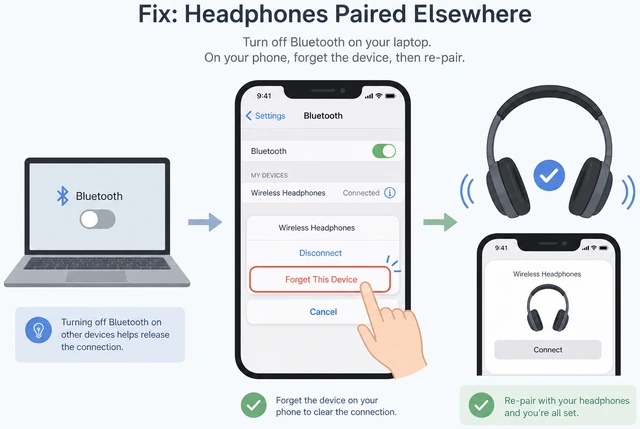
Stale pairs on two devices fight each other — clearing both sides gives your phone a clean first claim.
- On the other device, Forget or Unpair these headphones completely.
- On your phone, Forget the headphones, then put them in pairing mode again.
- Tap the name on your phone only — leave other Bluetooth radios off until the test song finishes.
Only your phone holds the pair and Connected stays put during a test song.
Need storage space before big app updates for headphone firmware? See related guides below.
No soundStatus says Connected but audio stays on the phone speaker
Raise media volume and confirm the phone output.
Play audio · press volume up · Control Center / media player should name your headphones.
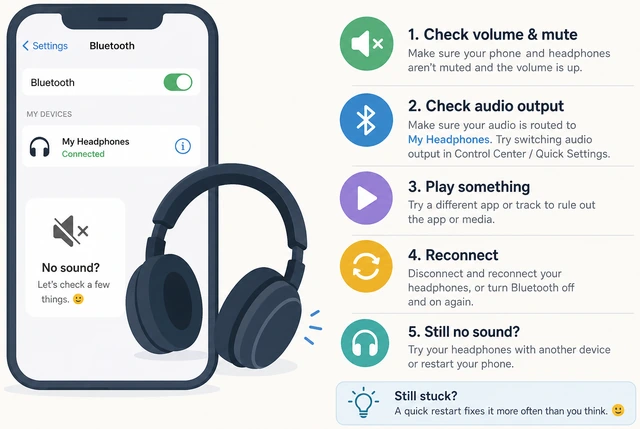
Ringer volume and media volume are separate — a silent media slider is the most common “Connected but quiet” cause.
- Start playing a song or video, then press the phone’s volume-up button several times.
- iPhone: swipe to Control Center and confirm the audio route shows your headphones.
- Android: expand the media player notification and confirm output is the headphones, not Phone speaker.
Media volume is up and the OS shows your headphones as the active output.
Phone volume UI may later use a portrait crop; keep the landscape webp filename.
Pause/play, check both earbuds, then escalate if still silent.
Pause → play · reseat both buds · try another app · then OS sound settings or maker app.
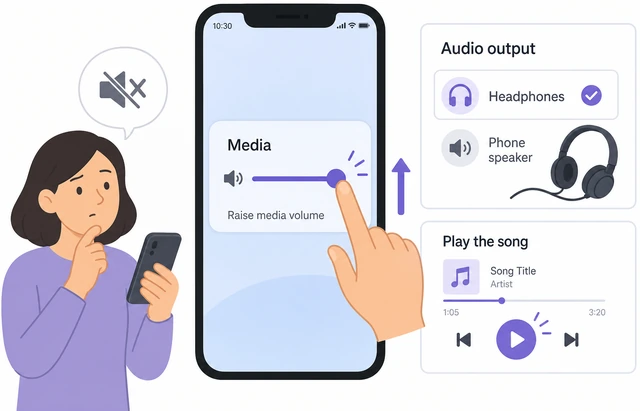
A stuck stream or one bud still in the case leaves “Connected” true while you hear nothing in the ear.
- Pause playback, wait two seconds, press play again — try a second app if the first stays mute.
- For earbuds, confirm both buds are charged and in your ears (not left in the case).
- Still silent? Open phone Sound / Audio settings or the maker’s app; else Forget and re-pair from Step 3.
You hear audio in the headphones, or you have a clear next stop (settings, app, or re-pair).
Hardware still dead after re-pair on two phones? Contact support — drivers and warranties beat endless resets.
When to get help
- Ask a trusted person to sit with you for Steps 3–7 so pairing mode and the phone taps stay coordinated.
- If a work phone blocks new Bluetooth accessories, contact IT instead of forcing resets.
- After a factory reset still fails on two phones, contact the manufacturer or retailer — hardware may be defective.
- Need space for a firmware app update on iPhone? See <a href="/how-to-free-up-storage-on-an-iphone/">How to Free Up Storage on an iPhone</a>.
When This Doesn't Work
- Work or school phone with managed Bluetooth. An MDM profile may block new accessories. Ask IT — this guide assumes a phone you control.
- A PIN or passkey appears and the manual does not list one. Common try is 0000 or 1234 only if documented. Otherwise reset the headphones and pair again; never guess endlessly.
- Computer headphones with a USB dongle. Some gaming headsets need the dongle, not Bluetooth. Check the box for “2.4 GHz” before blaming the phone.
- Only one earbud connects. Put both buds in the case, close the lid 10 seconds, reopen, then pair the case again. Mono “one bud” modes are intentional on some models.
Warnings
- Do not walk away during pairing — a nearby tablet or laptop can steal the connection while you wait.
- Keep Airplane Mode OFF; it turns Bluetooth off even if the Bluetooth tile looks confusing afterward.
- Do not hold the reset button unless the manual says so — some resets erase multi-device memory you wanted to keep.
- High volume can damage hearing — raise media volume gradually during the test song.
Tips
- Name your headphones in Bluetooth settings if the list shows a cryptic code — easier to spot next time.
- Multi-point (two devices at once) is brand-specific; turn the unused device’s Bluetooth off when calls or music jump weirdly.
- Firmware apps (Sony, Bose, and others) can fix stubborn bugs — install only from the App Store or Play Store, not random links.
- Low phone storage can block app updates for those helper apps — free space if an update fails mid-download.
FAQ
What is the difference between paired and Connected?
Paired means your phone remembers the headphones. Connected means they are actively linked right now and ready for sound. You only need pairing mode the first time (or after Forget).
Do I need a special app to pair?
No — Settings → Bluetooth is enough for a first pair. Brand apps can add EQ or firmware later; they are optional for basic music and calls.
Why do my headphones keep joining my laptop?
They auto-reconnect to the last powered Bluetooth device. Turn the laptop’s Bluetooth off, or Forget the headphones there, then connect on the phone.
Can I pair the same headphones to two phones?
Often yes, but only one may play audio at a time unless the model supports multipoint. Pair each phone once with other Bluetooth radios off nearby.
Comments
Questions, corrections, and what worked for you. Comments are reviewed before they appear.