How to Free Up Storage on an iPhone
Free meaningful storage on your iPhone so Updates and app installs stop failing for “not enough storage.” Open Settings → General → iPhone Storage, review Recommendations, offload or delete large apps, clean Photos carefully, clear Safari if you want, then confirm free space rose — without a full wipe. Read one step at a time and finish each before the next. Start with the 30-second preflight. Storage screen never finishes loading? See not loading. Deleted items but space stayed the same? See Recently Deleted. Worried Photos live only on this phone? See Photos & iCloud.
Tips for reading this guide
- One step at a time. Read the green caption, the Why line, then the bullets.
- Move on when the green done line is true — then go to the next step.
- iPhone Storage means Settings → General → iPhone Storage — the colored bar and app list live there.
- Offload vs Delete: Offload removes the app but keeps documents; Delete removes the app and its data on this phone.
- Screen stuck loading, space unchanged after delete, or worried about Photos in iCloud? Jump to the matching branch below.
- Need a helper? Ask someone you trust to sit with you for Steps 5–6 so you do not delete an app or album you still want.
Things You'll Need
- Your unlocked iPhone (recent iOS with Settings → General → iPhone Storage)
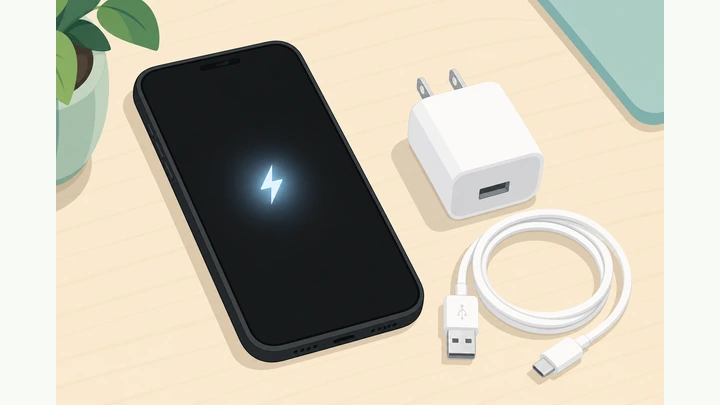
- Enough battery to finish (or plug in a charger)
- Your Apple ID / Face ID if Offload or iCloud asks to confirm
- Wi‑Fi nearby so the Storage screen can finish loading
- Optional: a recent computer or iCloud backup before deleting Photos
- About 15–20 quiet minutes
Where are you stuck?
Follow Start here for a first iPhone Storage cleanup. If the screen never finishes loading, deleted photos did not free space, or you fear losing iCloud Photos, jump to the matching branch.
- I want to free up storage on my iPhone iPhone Storage · Recommendations · Offload / delete
- iPhone Storage never finishes loading Force-quit Settings · Wi‑Fi · restart
- I deleted photos but space barely changed Albums → Recently Deleted → Empty
- I’m afraid deleting Photos will lose the only copy Check iCloud Photos · Optimize vs Delete
Start hereiPhone Storage → Recommendations → Offload / delete → Photos → Safari → restart → confirm
30-second preflight — all three checks must be YES.
Phone unlocked · battery okay · know Apple ID if Offload asks · optional backup note.
A locked screen or empty battery stops you mid-cleanup — and knowing your Apple ID keeps Offload prompts from feeling like a dead end.
- Phone unlocked? You can open Settings without Face ID or PIN blocking you mid-tap.
- Battery okay? Above roughly 20%, or plugged into a charger for the whole cleanup.
- Apple ID ready? Know Face ID / Touch ID or your password if Offload or iCloud asks to confirm.
All three checks are YES — unlocked phone, enough power, and sign-in ready if asked.
All YES? Continue to Step 1. Optional: if Photos are irreplaceable and you have never backed up, make a computer or iCloud backup first.
Open Settings → General → iPhone Storage.
Settings → General → iPhone Storage · colored bar at the top of the screen.
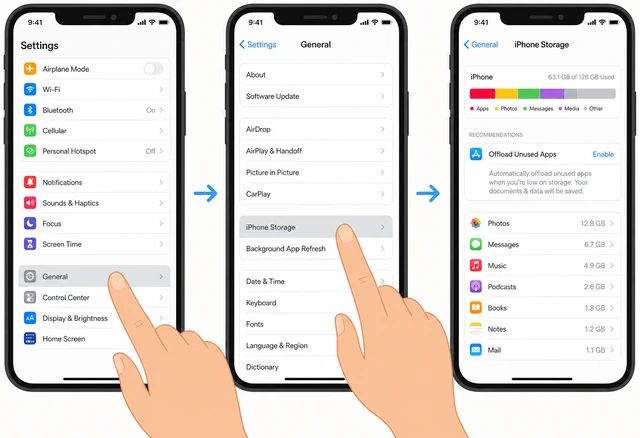
This is Apple’s official storage map — guessing which app is huge without this screen wastes time and often deletes the wrong thing.
- Open the gray Settings app on your Home Screen.
- Tap General, then tap iPhone Storage.
- Wait until you see the colored storage bar near the top (even if numbers are still calculating).
You are on the iPhone Storage screen and can see the colored bar.
Bar never appears or categories spin forever? → Not loading.
Wait for usage categories and the app list to finish loading.
Stay on the screen · categories + app sizes appear · do not lock the phone yet.
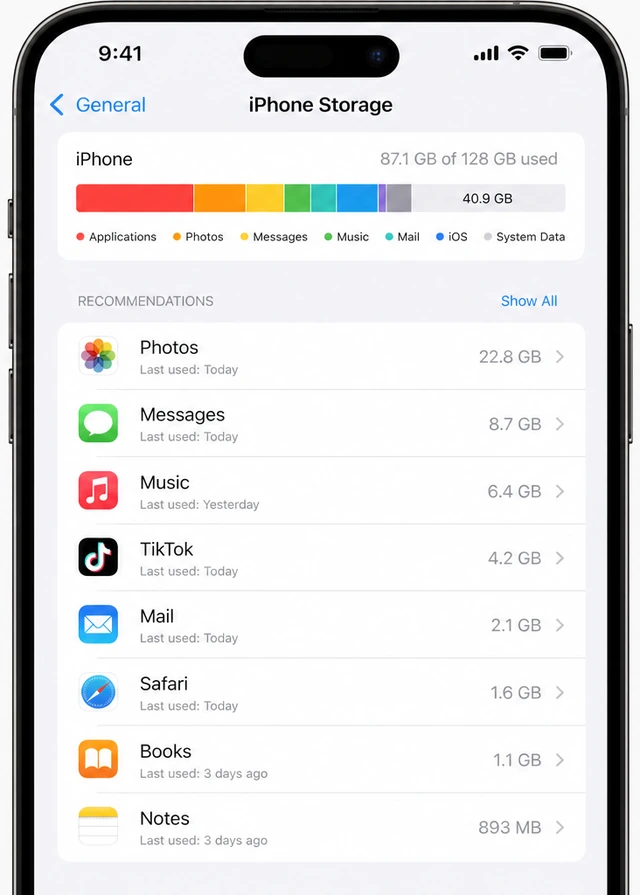
iOS calculates sizes in the background — leaving early looks like “Storage is broken” when it only needed another minute on Wi‑Fi.
- Keep iPhone Storage open for up to a few minutes on Wi‑Fi if sizes still show Calculating…
- Confirm you can see categories (Apps, Photos, Messages, System Data, and others) and a scrollable app list.
- If the spinner never stops after several minutes, use the not-loading branch before deleting anything.
Categories and the app list show real sizes (not endless Calculating…).
Still stuck on Calculating… after a restart? → Not loading.
Read Recommendations (Offload Unused Apps and related tips).
Scroll to Recommendations · note Offload Unused Apps and any photo or review tips shown.
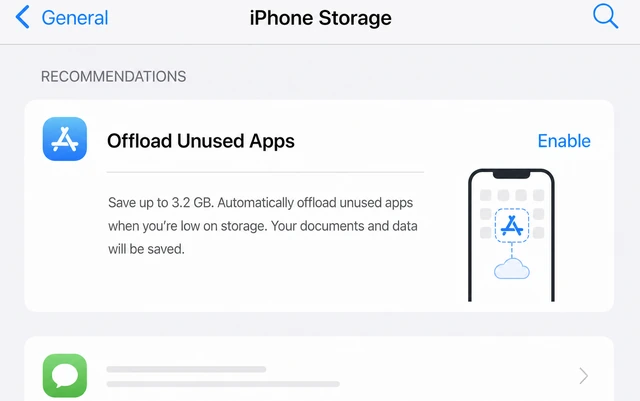
Recommendations are Apple’s shortest path to reclaim space — skipping them often means deleting something harder than needed.
- Scroll just below the storage bar to the Recommendations section (if your iOS version shows one).
- Read each tip once — especially Offload Unused Apps and any Photos review suggestions.
- If Recommendations are empty, skip ahead — you will still free space from the app list in later steps.
You know which Recommendations apply (or confirmed none are listed).
Enable or use Offload Unused Apps if it is offered.
Enable Offload Unused Apps · or Offload one unused app from Recommendations / the app list.
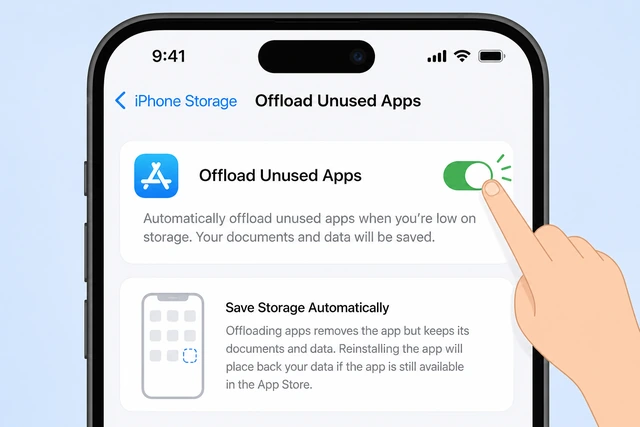
Offload removes the app binary but keeps documents and data — a safer first reclaim than Delete when you might reopen the app later.
- If Offload Unused Apps appears, tap Enable (or follow the on-screen Enable control).
- Or open one unused large app in the list → tap Offload App → confirm.
- Note: opening an offloaded app later re-downloads it — that is expected, not a failure.
Offload Unused Apps is enabled, or you offloaded at least one unused app.
Offload freed little? That is normal when documents are large — use Delete on apps you truly do not need in Step 5.
Review the largest apps; delete or offload one you do not need.
Open a large unused app → Delete App or Offload App · confirm · watch free space rise.
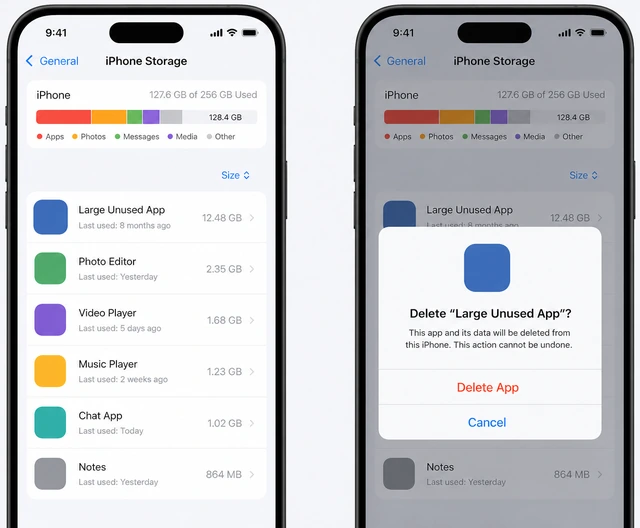
A few multi‑gigabyte games or streaming apps often free more space than dozens of tiny utilities.
- Scroll the app list and tap one of the largest apps you do not use (games, old banks, duplicate shoppers).
- Choose Delete App if you are sure, or Offload App if you want documents kept — then confirm.
- Return to iPhone Storage and glance at Available / the free end of the bar.
At least one large unused app is deleted or offloaded, and free space looks higher.
Clean Photos — delete obvious videos, then Empty Recently Deleted.
Delete large videos you do not need · then Albums → Recently Deleted → Delete All / Empty.
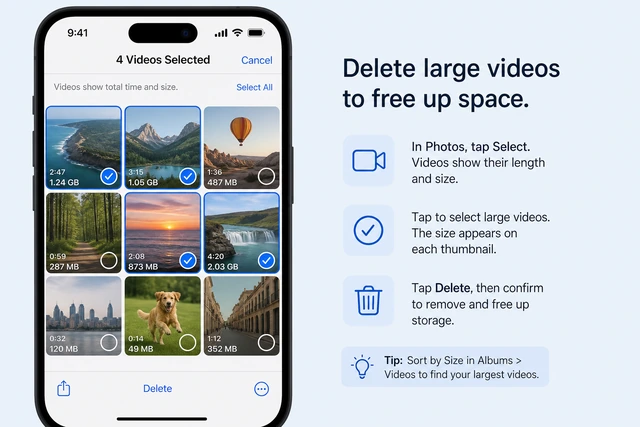
4K videos and bursts fill Photos fast — but deleted items sit in Recently Deleted for about 30 days until you Empty them.
- From iPhone Storage, tap Photos (or open the Photos app) and delete long videos or obvious duplicates you do not need.
- Open Albums → Recently Deleted → select items or use Delete All / Empty as labeled.
- If free space barely moved after delete, empty Recently Deleted before trying anything else.
You removed media you do not need and emptied Recently Deleted (or confirmed it was already empty).
Space unchanged after emptying? → Recently Deleted. Afraid of losing cloud originals? → Photos & iCloud.
Clear Safari History and Website Data (if you are comfortable).
Settings → Safari → Clear History and Website Data · confirm when ready.
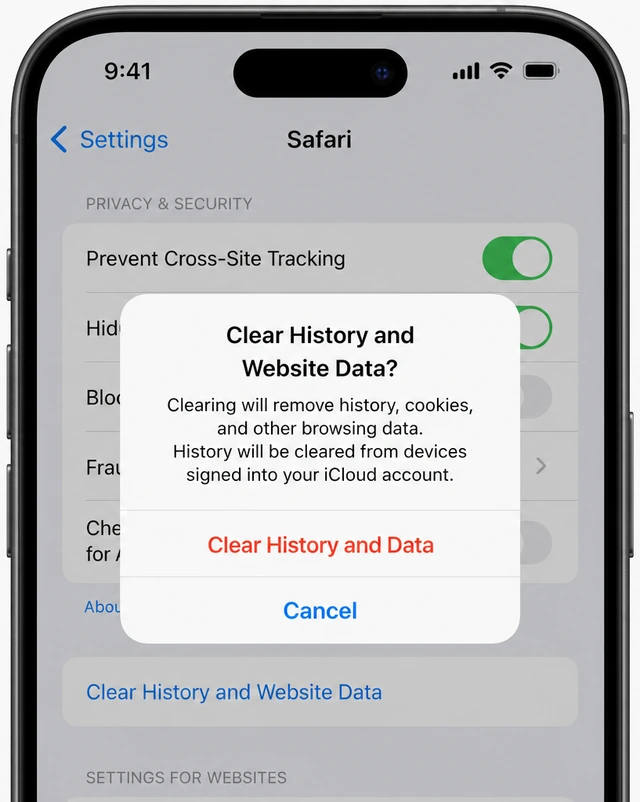
Website caches and offline data quietly grow under Safari — clearing them often frees hundreds of megabytes without deleting apps.
- Open Settings → tap Safari.
- Tap Clear History and Website Data, then confirm.
- Skip this step if you are not ready to sign back into some websites afterward.
Safari history and website data are cleared, or you chose to skip this step on purpose.
Optional pass: Messages attachments or large Mail data.
Still tight? Review Messages / Mail in iPhone Storage · remove large threads or downloads you do not need.
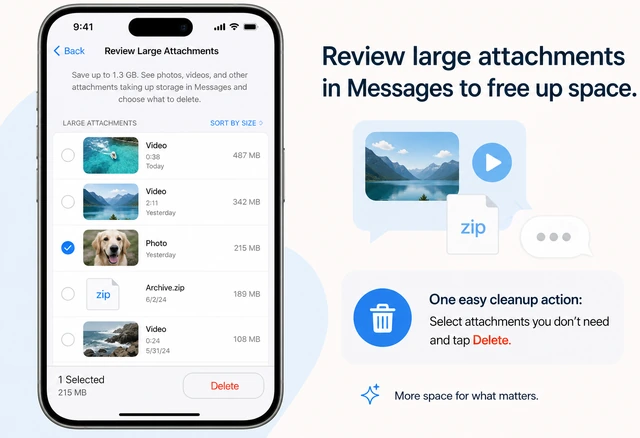
Years of photo texts and big email downloads often rival Photos for space — but only clean what you recognize.
- Return to Settings → General → iPhone Storage and check whether Messages or Mail is still large.
- For Messages: open a huge conversation and delete attachments or the whole old thread if you do not need it.
- Skip if free space is already enough for your Update — do not delete mail you may need later.
You either trimmed Messages/Mail or confirmed space is already enough without touching them.
Restart the iPhone, then reopen Storage to confirm free space.
Power off → on · Settings → General → iPhone Storage · Available (or free end of the bar) higher than before.
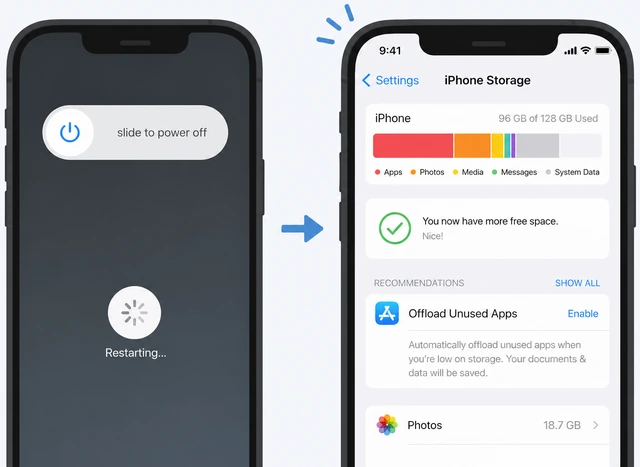
A restart finishes deferred cleanup jobs — Storage numbers often look clearer after the phone wakes again.
- Power the iPhone fully off, wait 10 seconds, then turn it back on and unlock.
- Open Settings → General → iPhone Storage again and wait for the bar to finish loading.
- Compare Available / free space to what you saw in Step 1 — it should be higher.
Free space increased (or clearly looks roomier on the storage bar).
If still full: Optimize iCloud Photos or delete more large media.
Space OK → stop · still full → Optimize iPhone Storage (iCloud Photos) or delete more large videos.
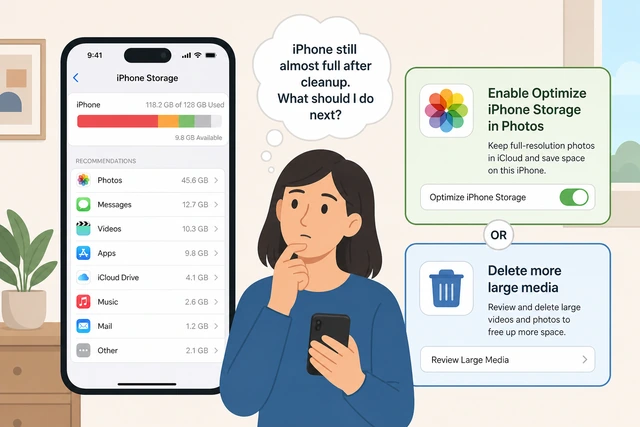
Optimize keeps full-resolution originals in iCloud and lighter versions on the phone — different from Delete forever.
- If Updates install and Available looks fine, stop — you are done.
- If still tight and you use iCloud Photos: Settings → [your name] → iCloud → Photos → turn on Optimize iPhone Storage.
- Or return to Photos and remove more long videos you truly do not need — see the iCloud branch first if you feel unsure.
You either have enough free space, or you have a clear next plan (Optimize or more media cleanup).
Unsure whether Optimize deletes originals? → Photos & iCloud.
Not loadingiPhone Storage categories stuck on Calculating… or never finish
Force-quit Settings, reconnect Wi‑Fi, and wait on the Storage screen.
Swipe up / force-quit Settings · join Wi‑Fi · reopen iPhone Storage · wait several minutes.
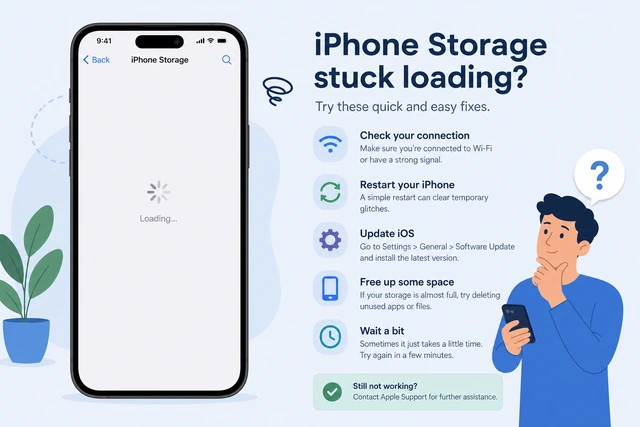
A stale Settings process or offline radio often freezes Calculating… — a clean relaunch on Wi‑Fi usually finishes the map.
- Swipe up from the bottom (or double-click Home), flick Settings up to force-quit, then reopen it.
- Confirm Wi‑Fi is connected (Storage can take longer on cellular or offline).
- Open General → iPhone Storage again and leave the screen open for several minutes without locking.
Sizes begin to appear, or you confirmed Wi‑Fi + a fresh Settings launch still leave it stuck.
Restart the iPhone, update iOS if offered, then escalate if it persists.
Restart phone · check Software Update · still stuck for days? Apple Support.
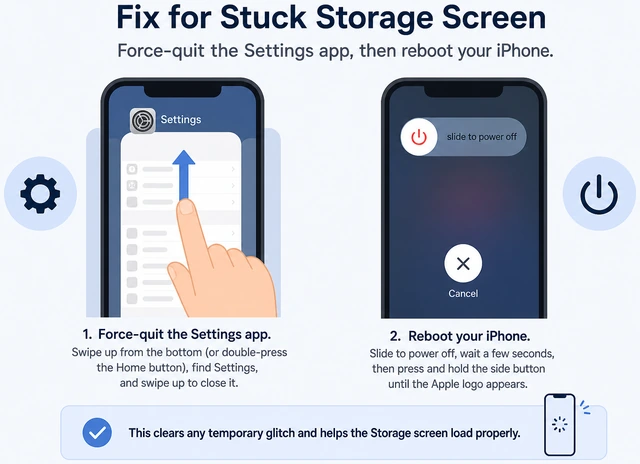
A reboot clears stuck System Data accounting; an outdated iOS build is a known cause of Storage screens that never finish.
- Power the iPhone fully off and on, unlock, then reopen iPhone Storage.
- If sizes still never appear: Settings → General → Software Update and install when space allows.
- If it stays stuck for days, contact Apple Support — do not erase the phone just for this screen.
Storage finishes loading after restart/update, or you know to escalate to Apple Support.
Cannot install an update because storage is already full? Use Start here Steps 5–6 from memory (delete one large unused app / Empty Recently Deleted), then retry the update.
Recently DeletedYou deleted photos or videos but Available space barely changed
Open Photos → Albums → Recently Deleted.
Photos app → Albums (bottom) → scroll to Recently Deleted · open it.
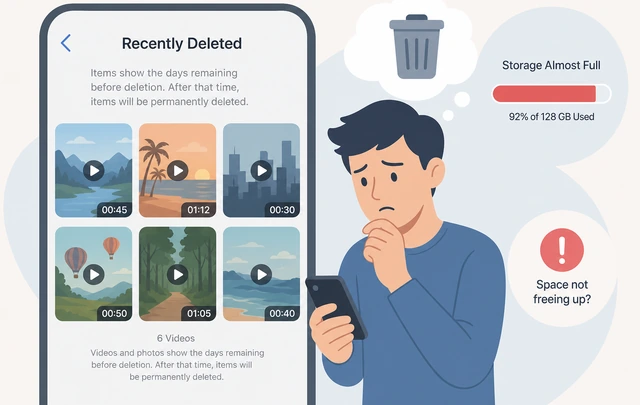
iOS keeps deleted photos and videos for about 30 days in Recently Deleted — they still count toward storage until emptied.
- Open the Photos app (multicolored flower icon).
- Tap Albums at the bottom, then scroll to Recently Deleted Utilities section.
- Open it — if items are listed, they are still using space.
You can see the Recently Deleted album contents (or confirm it is empty).
Delete All / Empty Recently Deleted, then recheck Storage.
Select → Delete All (or Empty) · confirm · return to iPhone Storage.
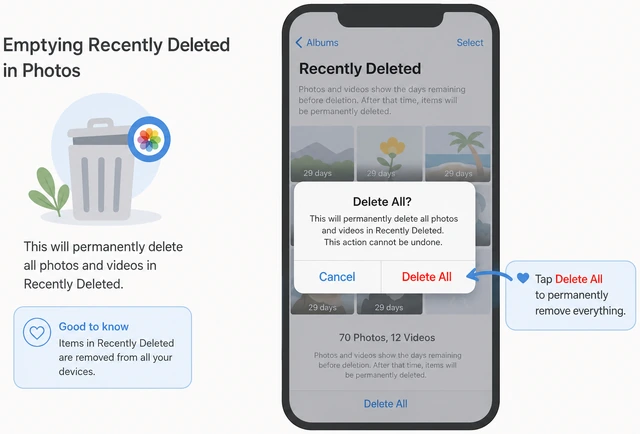
Only a permanent empty frees the gigabytes — leaving items in Recently Deleted keeps them on the phone.
- Tap Select, then Delete All (wording may say Empty) and confirm.
- Wait a minute, then open Settings → General → iPhone Storage again.
- Confirm Available / the free end of the bar improved; if not, wait for the bar to finish recalculating.
Recently Deleted is empty and Storage shows more free space (or is recalculating upward).
You deleted Files / Downloads instead of Photos? Check that app’s own Recently Deleted or Trash too.
Photos & iCloudWorried Delete or Optimize will erase the only copy of your photos
Check whether iCloud Photos is on — and what Optimize means.
Settings → [your name] → iCloud → Photos · note iCloud Photos ON/OFF and Optimize vs Download and Keep Originals.
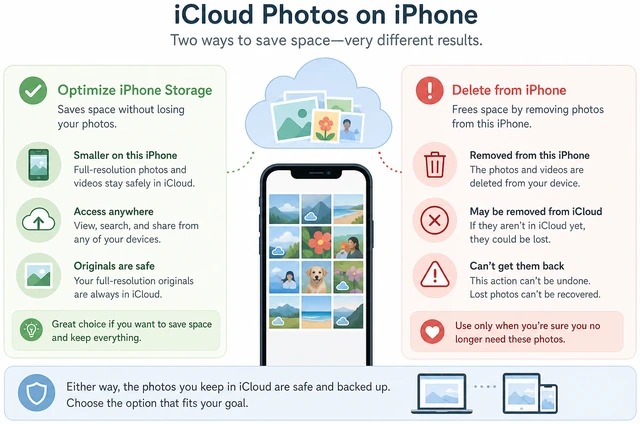
Optimize stores full originals in iCloud and lighter versions on the phone — it is not the same as Delete All from Recently Deleted.
- Open Settings → tap your name at the top → iCloud → Photos.
- If iCloud Photos is ON, originals are meant to live in iCloud (plus lighter copies on the phone if Optimize is on).
- If iCloud Photos is OFF, treat every Delete as removing the copy on this phone — back up first if unsure.
You know whether iCloud Photos is on, and whether Optimize or Keep Originals is selected.
Verify a few photos on iCloud.com (or a backup) before any mass delete.
On a computer: iCloud.com → Photos · confirm favorites appear · then Optimize or delete only what you checked.
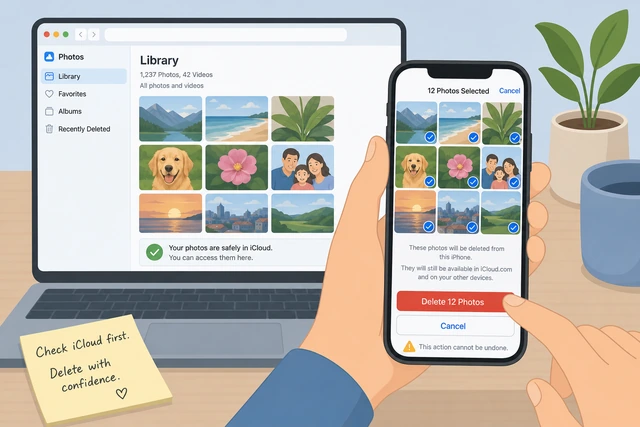
Seeing the same albums in a browser proves you are not about to erase your only copy — when unsure, stop and ask a helper.
- On a computer, sign in at iCloud.com → Photos and confirm a few important pictures are there.
- If they appear: use Optimize iPhone Storage, or delete only duplicates you recognize.
- If they do not appear: do not Empty Recently Deleted in bulk — ask a helper or back up first.
You verified cloud/backup copies exist, or you stopped cleaning Photos until a helper or backup is ready.
Still unsure after checking? Leave Photos alone and reclaim space from unused apps (Start here Step 5) instead.
When to get help
- Ask a trusted person to sit with you for Steps 5–6 so large app deletes and Photos cleanup stay intentional.
- If a work or school iPhone blocks Offload or deletes, contact IT instead of forcing an erase.
- If System Data stays enormous for days after cleanup and an iOS update, contact Apple Support — avoid erase-all as a first fix.
- Need a similar “clear junk data” habit on a computer browser? See <a href="/how-to-clear-chrome-browser-cache/">How to Clear Chrome Browser Cache</a>.
When This Doesn't Work
- Managed work or school iPhone. An MDM profile may block Offload, Software Update, or deleting certain apps. Ask IT — this guide assumes a phone you control.
- System Data stays huge with no clear apps. After Offload, Photos cleanup, and a restart, large “System Data” can still linger. Update iOS when possible; if it stays stuck for days, escalate to Apple Support rather than erasing blindly.
- iCloud storage full vs iPhone storage full. These are different meters. This guide frees space on the phone. Freeing iCloud (backups, Photos library quota) is a separate Settings → [your name] → iCloud path.
- “Not enough storage” only when downloading one huge game or 4K movie. You may still need more free space than Recommendations reclaim — delete another large app or video, or free space from a computer backup restore path with a helper.
Warnings
- Delete App removes the app and its documents on this phone — Offload is safer when you might need the data later.
- Emptying Recently Deleted is permanent after you confirm — check once before Delete All.
- Do not erase all content and settings just to free space — that wipes the whole phone; use this guide’s targeted cleanup first.
- If Photos matter and iCloud Photos is off, back up before mass deletes — when unsure, ask a trusted helper first.
Tips
- Attack the largest items first — one 4 GB game often beats deleting twenty tiny utilities.
- After Offload, the app icon may show a cloud badge; tapping it re-downloads — expected behavior.
- Review Photos → Media Types → Videos for long recordings shot in 4K — easiest wins.
- Low storage can block iOS updates; free a few gigabytes, install the update, then revisit System Data size.
FAQ
Where is iPhone Storage in Settings?
Open Settings → General → iPhone Storage. You should see a colored bar and a list of apps and categories underneath.
What is the difference between Offload App and Delete App?
Offload removes the app but keeps its documents and data on the phone. Delete removes the app and its data on this phone. Offload is usually the safer first choice for apps you might reopen.
Why didn’t deleting photos free space?
Deleted items stay in Photos → Albums → Recently Deleted for about 30 days and still use storage until you Empty / Delete All there.
Does Optimize iPhone Storage delete my originals?
No — with iCloud Photos on, Optimize keeps full-resolution originals in iCloud and stores lighter versions on the phone. Confirm favorites at iCloud.com if you want extra confidence before enabling it.
Comments
Questions, corrections, and what worked for you. Comments are reviewed before they appear.