How to Fix Wi-Fi
When Wi-Fi breaks, you usually don't need a technician — you need the right path. Pick your symptom below, check whether it's one device or the whole house, then run Start here (fixes most outages). If your problem is slow speed, one device only, or one dead room, jump to that branch. Already trying to join Wi-Fi for the first time? See our connect to Wi-Fi guide instead.
Tips for reading this guide
- One step at a time. Read the green caption, look at the picture, then do the bullets.
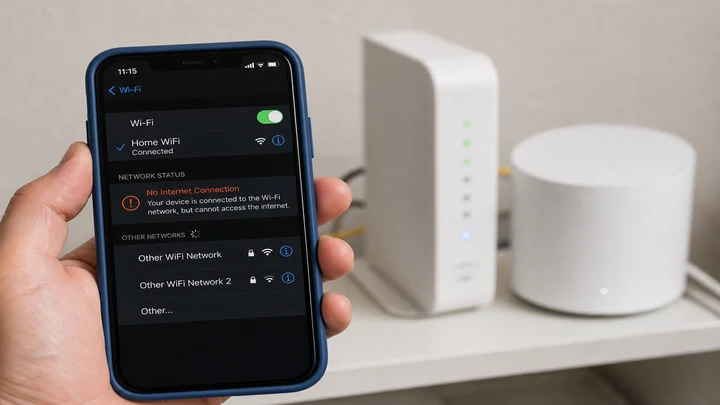
Things You'll Need
- Phone or laptop that's having the problem
- A second device to compare (tablet, another phone, or laptop)
- Access to your modem and router —usually where the coax or fiber enters the home
- Wi-Fi password (router sticker or ISP app)
- Optional: Ethernet cable to plug a laptop directly into the router for isolation tests
What's going wrong?
Pick the closest match. The full page stays visible — nothing is hidden behind tabs.
- No internet on any device Phones, laptops, and tablets all fail
- Connected but no internet Wi-Fi icon with exclamation mark
- Wi-Fi is slow or buffers Pages load but video stutters
- Only one device won't connect Everything else works fine
- Works in one room only Dead zone or mesh satellite issue
- Not sure / everything seems broken Start with the default path
First: one device or the whole house?
- Every device fails — run Start here (modem and router path).
- One device only — jump to One device won't connect.
- One room only — skip the modem reboot; try Works in one room only.
- Cellular works, home Wi-Fi doesn't on all devices — equipment or ISP outage, not your phone plan.
Start hereFix Wi-Fi on your phone — most outages in about 10 minutes
Check whether every device is broken or just one.
Exclamation on the Wi-Fi icon — compare this phone to a laptop on the same network.
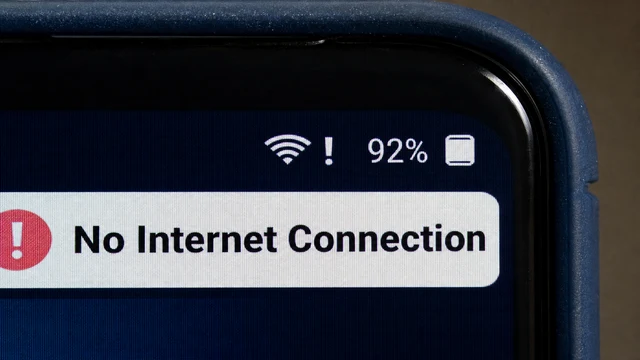
On the problem phone, note what you see: no Wi-Fi at all, connected with no internet (exclamation mark on the Wi-Fi icon), or Wi-Fi that drops every few minutes. Then open a browser on a laptop or tablet on the same network.
- If every device fails —treat it as modem, router, or ISP (Steps 3 and 5 matter most).
- If only one device fails —focus on Steps 2 and 4 on that device first.
- If cellular works but home Wi-Fi doesn't on all devices —almost always equipment or outage, not your phone plan.
Mesh Wi-Fi (Eero, Nest, Orbi): Test while standing next to the primary node —not a bedroom satellite. A dead satellite looks like "Wi-Fi works in the kitchen but not the bedroom," which is a different fix (move or replug the puck).
Toggle airplane mode on for ten seconds, then off —and turn Wi-Fi back on.
Airplane mode off, Wi-Fi on —resets the radio without a full reboot.
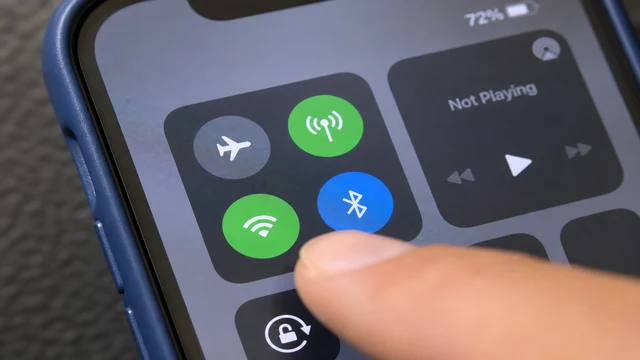
- iPhone: Swipe down →tap airplane mode ON —wait 10 seconds —tap OFF —confirm Wi-Fi reconnects.
- Android: Quick settings →airplane mode ON —wait —OFF —Settings →Wi-Fi —confirm connected.
- Wait thirty seconds after Wi-Fi reconnects before you test a website.
Don't skip this on "connected, no internet": The phone can show connected while the IP lease is stale. Airplane mode clears that faster than rebooting the router.
Power-cycle the modem first, then the router —in that order.
Modem power pulled —wait 30 seconds before plugging back in.
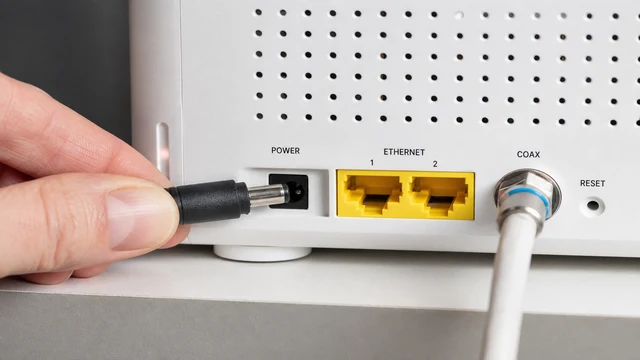
Unplug the modem (coax or fiber box from your ISP) from power. Count to thirty. Plug it back in and wait until the online/light stops blinking —usually two to three minutes. If you have a separate router, unplug it only after the modem is stable, wait thirty seconds, plug the router back in, then wait another two minutes.
Combo units (Xfinity, Spectrum all-in-one): There's only one box —unplug that single unit. Don't press reset pinholes —that wipes settings. Power cord only.
Forget the network and join again with the password.
Forget clears a corrupted saved profile —you'll re-enter the password once.
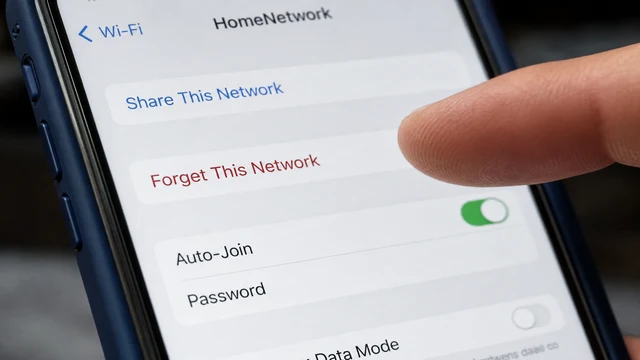
On the problem device, open Wi-Fi settings, tap the ⓘ or gear icon next to your home network, and choose Forget This Network (Android: tap the network →Forget). Re-select the SSID, type the password from the router label, and join.
Dual-band names: If you see Home_2.4 and Home_5G, forget both saved entries and join the 2.4 GHz name first —it proves the router is broadcasting before you chase speed on 5 GHz.
Confirm router lights are solid before you blame the phone.
Steady power and internet lights —ready to test browsing again.
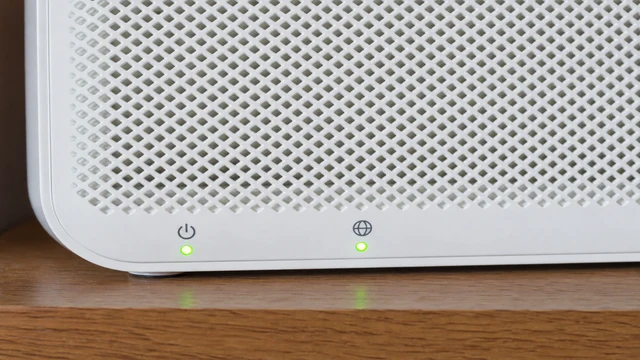
Look at the front of the router or mesh primary node. Power should be solid. Internet / Online / WAN should be solid green or white —not red, not endlessly blinking. If internet LED stays red after Step 3, the modem isn't getting a signal from your ISP; calling them beats tweaking phone settings.
LED meanings vary by brand: Netgear uses solid white for good; some Arris units use solid blue. Blinking during boot is normal; blinking ten minutes later is not.
Load a website —the exclamation mark on Wi-Fi should be gone.
Page loads and Wi-Fi icon is clean —you're back online.
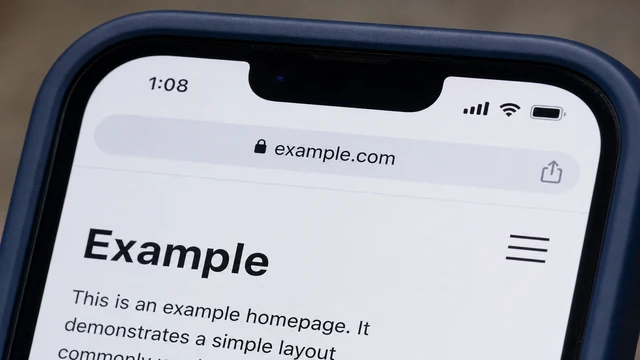
Open Safari, Chrome, or any browser and load a site that doesn't require login. If it opens within a few seconds, you're fixed. Run a quick speed test if you want —but browsing works is the pass/fail line for home troubleshooting.
If Wi-Fi is slowConnected, but speed or buffering is the problem
Use this branch when pages load but video buffers, downloads crawl, or speed tests are far below your plan.
Test speed next to the router on Wi-Fi, then on cellular.
Speed test next to the router — if numbers are low here, the problem is home Wi-Fi or ISP.
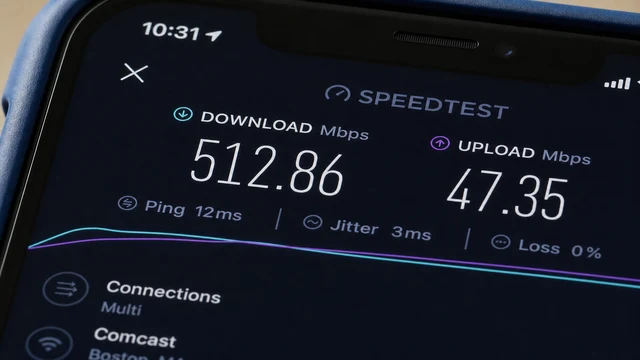
Stand within six feet of the primary router or mesh node. Run a speed test in a browser. If Wi-Fi is slow here but cellular is fast, the bottleneck is your home network — not the ISP.
- If speed is good next to the router but bad in a bedroom, jump to one room only.
- If speed is slow everywhere after Start here, continue below.
Join the 2.4 GHz band first, then retest.
Two network names on the list — join 2.4 GHz first when testing from a far room.
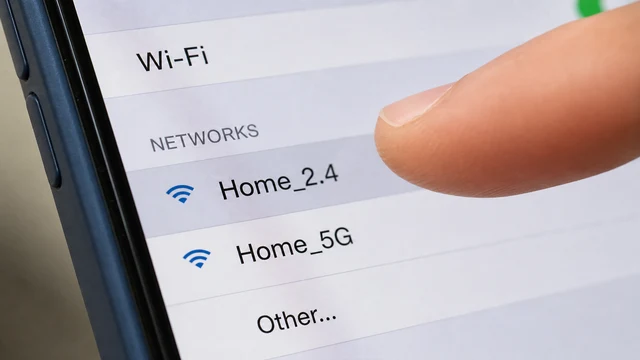
Many routers broadcast separate names like Home_2.4 and Home_5G. 5 GHz is faster close up but dies through walls. Join 2.4 GHz from the slow room — if speed jumps, placement or mesh coverage is the issue, not your ISP.
Single SSID routers: In the router app, temporarily disable band steering or split bands to test.
Power-cycle modem and router if you haven't in the last hour.
Same modem power-cycle as Start here — skip if you already rebooted within the hour.
If you already did the modem-then-router reboot in Start here, skip to Step 4. Otherwise unplug the modem for 30 seconds, wait for online light, then restart the router.
Check for bandwidth hogs and schedule big downloads.
Active devices in the router app — pause streams and updates hogging bandwidth.
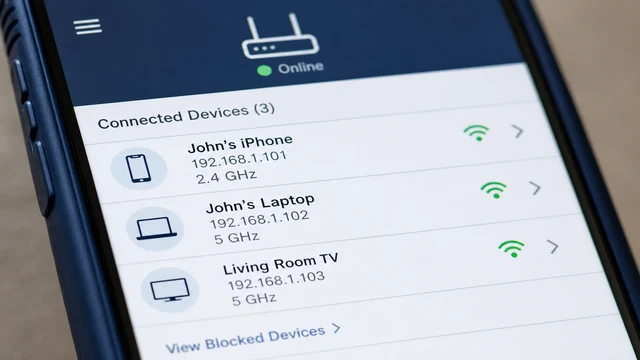
Pause 4K streams, cloud backups, and game updates on every device. One console updating in the background can make every other device feel broken.
- Router apps (Eero, Google Home, Netgear) show active devices — pause or disconnect unknown ones.
- Ethernet test: plug a laptop into the router. If wired speed matches your plan but Wi-Fi doesn't, focus on placement or mesh.
If only one device won't connectEvery other phone and laptop works fine
Use this when one phone or laptop fails while others browse normally.
Toggle airplane mode for ten seconds, then rejoin Wi-Fi.
Airplane mode off, Wi-Fi on — clears a stale connection on one phone.
This clears a stale IP lease without rebooting the whole phone. Wait thirty seconds after Wi-Fi reconnects before testing a website.
- iPhone: Control Center → airplane ON → wait 10 s → OFF → confirm Wi-Fi reconnects.
- Android: Quick settings → airplane ON → OFF → Settings → Wi-Fi → confirm connected.
Forget the network and join again with the password.
Forget clears a bad saved profile — you'll re-enter the password once.
Open Wi-Fi settings, tap ⓘ or the gear next to your home network, choose Forget This Network, then rejoin with the password from the router sticker.
If you see dual-band names, forget both saved entries and join 2.4 GHz first.
On a laptop, run the built-in troubleshooter.
Built-in troubleshooter on a laptop when only that machine fails.
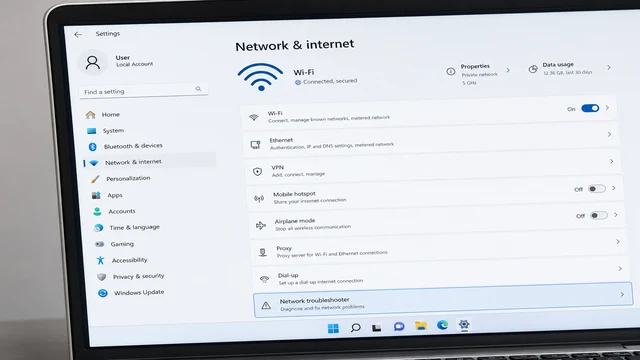
Windows 11: Settings → Network & internet → Advanced network settings → Network troubleshooter. Mac: System Settings → Wi-Fi → Details → Forget This Network, rejoin.
Ethernet test: cable from router to laptop. Wired works but Wi-Fi doesn't → router radio or laptop adapter, not ISP.
Reboot that device after router fixes didn't help.
Full restart after settings fixes — clears stuck network stacks.
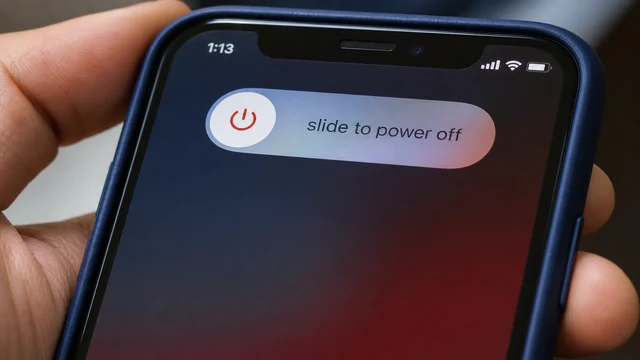
If airplane mode and forget-network failed, a full restart clears stuck network stacks. Install pending OS updates — some Wi-Fi bugs ship as patches.
Old device won't connect: Router may be WPA3-only — set security to WPA2/WPA3 mixed in the router app.
If Wi-Fi works in one room onlyKitchen fine, bedroom dead — usually mesh or placement
Use this when signal drops in part of the house but works next to the router.
Test standing next to the primary router vs the dead room.
Strong signal by the router, weak in the bedroom — coverage problem, not ISP.
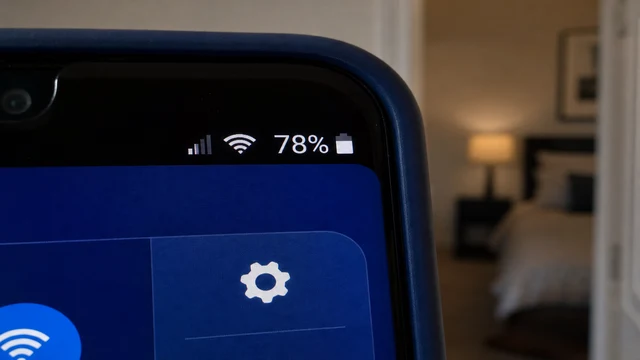
Confirm the dead zone isn't an ISP outage — if browsing works in the kitchen, modem and ISP are fine.
Check mesh satellites — power and LED status.
Mesh puck online with solid LED — dead zones often mean a satellite is unplugged.
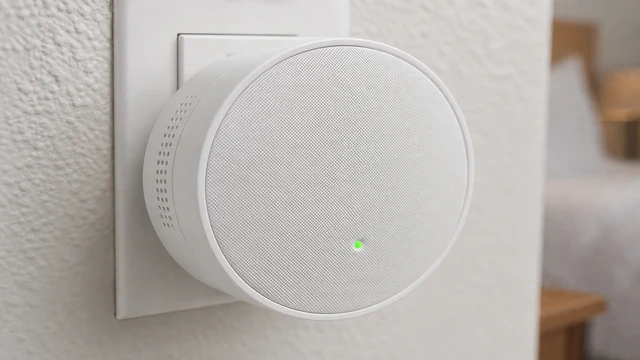
Eero, Nest Wi-Fi, Orbi, and similar systems need each puck online. A unplugged or blinking-red satellite creates a dead zone that no phone setting will fix.
- Replug the bedroom puck — wait five minutes for it to rejoin.
- Move the satellite halfway between the router and dead zone — not at the far edge.
Reduce distance and obstacles — or add a node.
Router up high and away from the microwave — fewer walls and less interference.
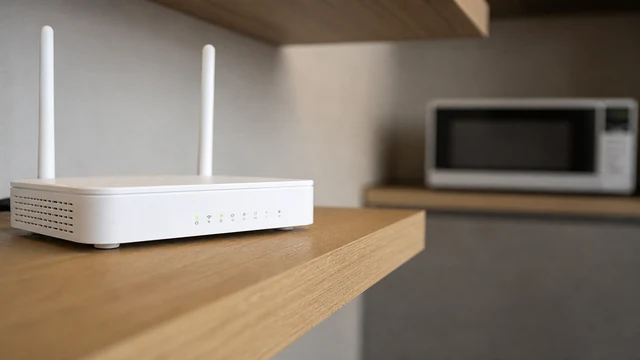
Wi-Fi weakens through walls, mirrors, and metal appliances. Elevate the router off the floor, away from microwaves and fish tanks. If one room still fails, you need another mesh node or wired backhaul — not another reboot.
When to call your ISP or stop DIY
- Modem online light stays red or blinks for 10+ minutes after a proper power-cycle.
- Ethernet from laptop directly to the modem still fails — not a Wi-Fi problem.
- Outage confirmed on ISP status page and neighbors report the same issue.
- Don't factory-reset the router unless ISP support walks you through it.
When This Doesn't Work
- Every device fails after Step 3 and the modem online light stays red. Likely an ISP outage or a bad coax connection —check ISP status page on cellular or call support. Don't factory-reset the router yet.
- Wi-Fi works in one room only. Satellite mesh node is unplugged or too far —move the puck halfway between router and dead zone, or wire backhaul if your system supports it.
- Fixed for an hour, then drops again. Overheating router ( vents blocked), failing power adapter, or ISP signal fluctuating —note times and ask ISP to check signal levels.
- Only one old device won't connect after everything else works. WPA3-only mode may block it —in router app, set security to WPA2/WPA3 mixed.
Warnings
- Don't factory-reset your router unless ISP support walks you through it —you'll lose the Wi-Fi name, password, and port forwards.
- Unplug by the power cord, not by yanking Ethernet —you can damage the clip.
- Avoid "Wi-Fi booster" apps in the app store —they don't fix ISP or router problems and often show ads.
Tips
- Label modem and router with sticky notes after a fix —"modem = coax box, router = Wi-Fi box" saves the next panic.
- Schedule a monthly five-second check: one speed test on Wi-Fi standing next to the router —you'll notice slowdowns before video calls fail.
- If you rent equipment from your ISP, ask for a swap before you buy your own —a bad rented modem is their problem.
FAQ
Why does Wi-Fi say connected but websites won't load?
Your device reached the router, but the router isn't getting internet from the modem. Do Step 3 (modem first, then router). If the modem online light stays bad, it's ISP-side —phone settings won't help.
How long should I wait after unplugging the modem?
Thirty seconds unplugged minimum —that drains capacitors so the modem fully reboots. Then two to three minutes after plug-in before you test. Mesh systems can take five minutes to re-form the network.
Will forgetting the network delete my password?
It removes the saved profile on that device only —you'll type the password once when rejoining. The password on the router itself doesn't change. Password managers may still have the old one; use the sticker if unsure.
Comments
Questions, corrections, and what worked for you. Comments are reviewed before they appear.