How to Take a Screenshot on Windows
Capture anything on your Windows screen in six steps with Win+Shift+S — then paste into Paint and save a PNG. Read one step at a time and finish each before the next. Start with the 30-second preflight. Prefer one-key auto-save? See Win+PrtScn. Can't find the picture? Use find the file. Shortcut does nothing? Try fix the shortcut.
Tips for reading this guide
- One step at a time. Read the green caption, the Why line, then the bullets.
- Move on when the green done line is true — then go to the next step.
- Win is the Windows logo key, usually between Ctrl and Alt.
- On a phone? Tap Jump to section at the top.
- Shortcut does nothing, or you can't find the file? Jump to the matching branch below.
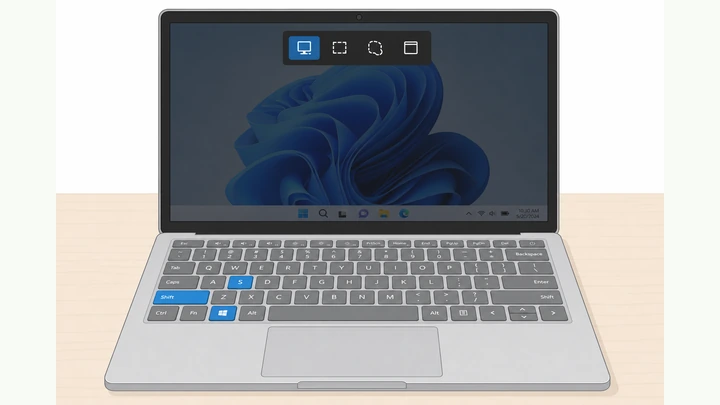
Things You'll Need
- Windows 10 or Windows 11 PC (desktop or laptop)
- Keyboard with a Windows (Win) key, Shift, and letter S
- Optional: PrtScn / Print Screen key for the auto-save branch
- Paint (built-in) or any app that pastes images
Start hereWin+Shift+S → clipboard → Paint → PNG
30-second preflight — all four checks must be YES.
Windows 10/11 · know Win+Shift+S · close private windows · Paint available.
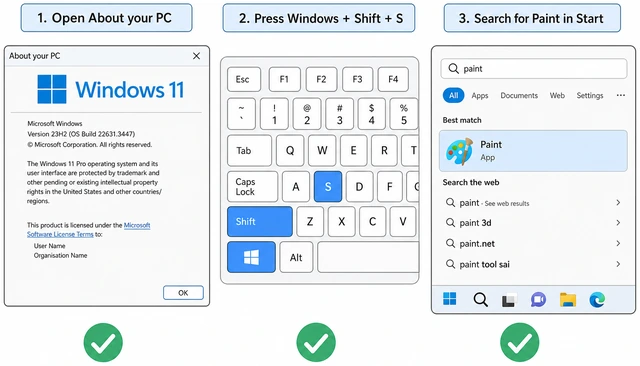
The snipping bar only ships with current Windows, and saving needs Paint or another paste app — checking first avoids a blank clipboard and a missing shortcut.
- Windows 10 or 11? Press Win, type About your PC, open it — version should say Windows 10 or 11.
- Know the keys? Win (logo) + Shift + S — not Ctrl+S (that saves a document).
- Private stuff hidden? Close banking, passwords, and chat windows you do not want in the picture.
- Paint ready? Press Win, type Paint — the blue Paint app should appear in results.
You confirmed Windows 10/11, know Win+Shift+S, private windows are closed, and Paint shows in Start search.
All YES? Continue to Step 1.
Press Win+Shift+S to open the snipping bar.
Hold Win+Shift, tap S — dark overlay and four icons appear.
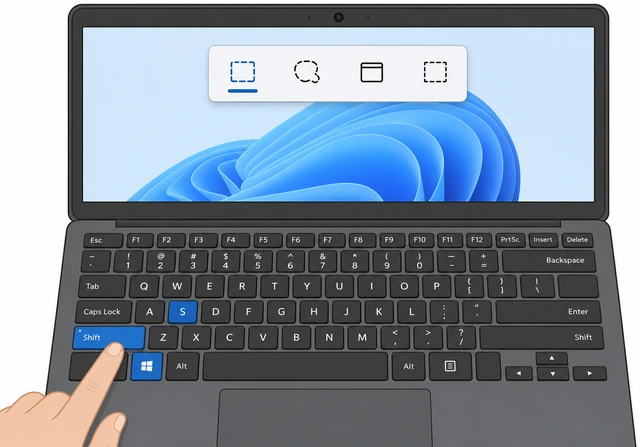
Win+Shift+S is the modern Snipping Tool shortcut — it freezes a capture overlay so you choose what to snip without opening menus first.
- Click the desktop or any window so Windows is focused.
- Hold Win and Shift, then tap S.
- The screen dims and a small toolbar with four icons appears near the top.
The screen is dimmed and the snipping toolbar (four icons) is visible at the top.
Nothing happens? → Shortcut does nothing.
Choose Rectangle, Window, Full screen, or Freeform.
Left to right: rectangle · freeform · window · full screen.
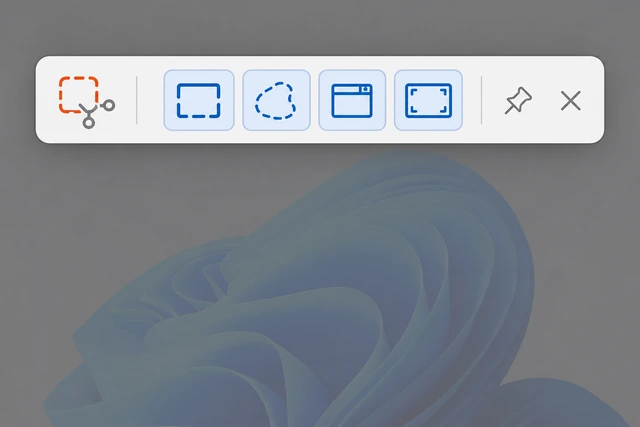
Mode picks how much gets copied — choosing now means you do not crop later or capture the whole monitor by accident.
- Click Rectangular snip (most common) for a box you drag.
- Click Window snip to capture one app window.
- Click Full-screen snip for the entire display.
- Click Freeform snip only if you need an irregular shape.
The mode you want is selected (highlighted) on the snipping toolbar.
Want Pictures\Screenshots saved automatically with one combo? → Win+PrtScn.
Select the area or window — copy lands on the clipboard.
Drag a box (or click a window) — checkmark toast means clipboard has it.
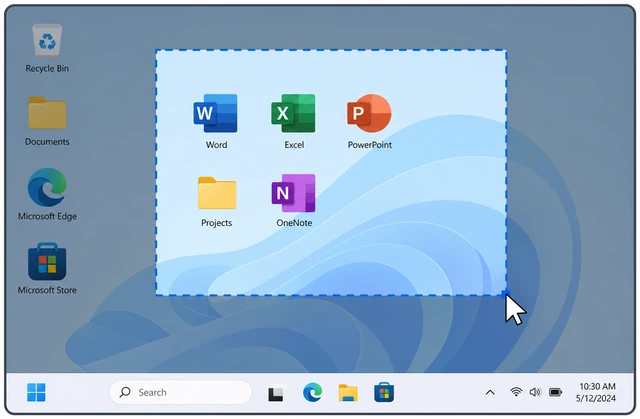
The snip goes to the clipboard first, not a file — you must paste soon or the next copy will replace it.
- Rectangle: click and drag a box around what you want, then release.
- Window: click the window you want — it highlights, then tap once.
- Full screen: Windows captures immediately after you choose that mode.
- A small notification may appear — the image is now on the clipboard.
The dim overlay is gone and a snip notification (or clipboard ready state) appeared — do not copy anything else yet.
Open Paint and paste with Ctrl+V.
Win → type Paint → Enter → Ctrl+V.
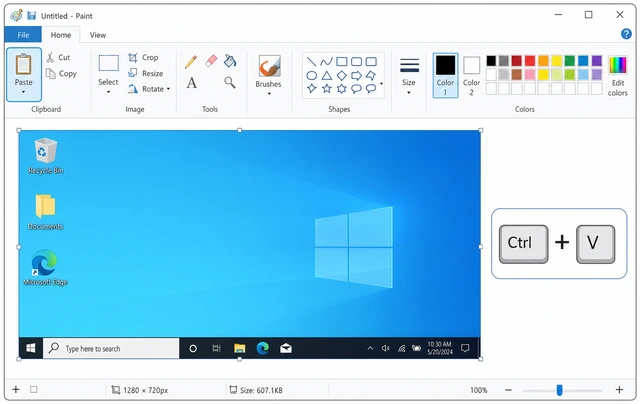
Paint shows the clipboard image so you can crop or save — the snip is not a file until you paste and save.
- Press Win, type Paint, press Enter.
- In Paint, press Ctrl+V (or Home → Paste).
- Your screenshot should appear on the white canvas — crop with Select if needed.
Paint shows your screenshot on the canvas (not a blank white page).
Blank paste? Snip again from Step 1 — something else may have replaced the clipboard.
Save as PNG to Desktop or Pictures.
File → Save as → PNG → Desktop → Save.
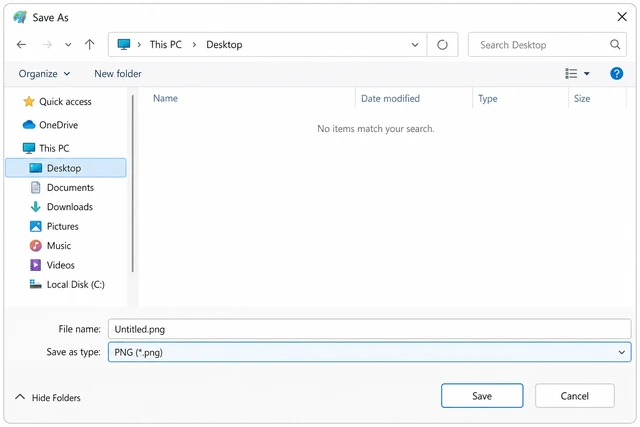
PNG keeps sharp text and UI edges — JPEG can blur lettering, and saving now creates a real file you can attach or email.
- Click File → Save as → PNG picture.
- Choose Desktop or Pictures as the folder.
- Type a clear name (example: receipt-2026-07-14) and click Save.
A .png file with your name exists in Desktop or Pictures.
File missing later? → Can't find file.
Open the PNG and confirm the capture looks right.
Double-click the PNG — check text and edges are readable.
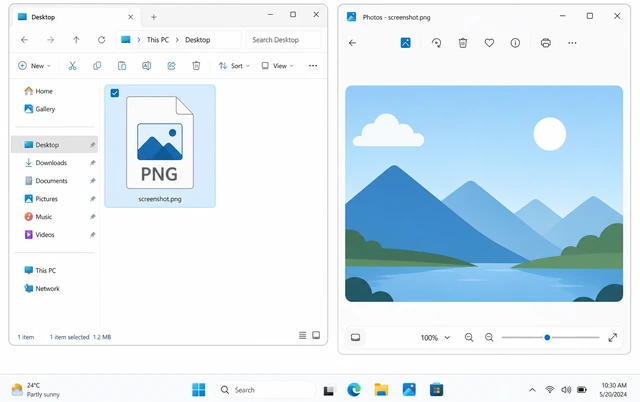
Opening the file confirms you saved the right area at full size — easier to re-snip now than after you close everything.
- Open File Explorer to Desktop or Pictures.
- Double-click your .png — it opens in Photos or Paint.
- Check that the important text and buttons are inside the frame.
The PNG opens and shows the screen area you meant to capture.
Win+PrtScn auto-saveSkip Paint — save straight to Pictures\Screenshots
Press Win+PrtScn once.
Win + PrtScn — screen blinks or dims briefly.
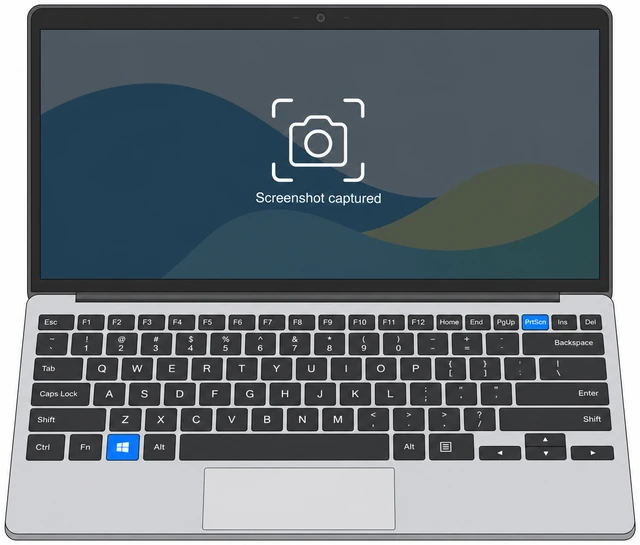
Win+PrtScn tells Windows to write a full-screen PNG automatically — no clipboard paste step.
- Hold Win and tap PrtScn (sometimes labeled PrtSc or Print Screen).
- The screen may dim for a split second — that means the capture worked.
- On some laptops press Fn+Win+PrtScn if PrtScn shares a function key.
The screen flashed or dimmed once after you pressed the keys.
Open Pictures → Screenshots and open the newest file.
This PC → Pictures → Screenshots → newest Screenshot (N).png.
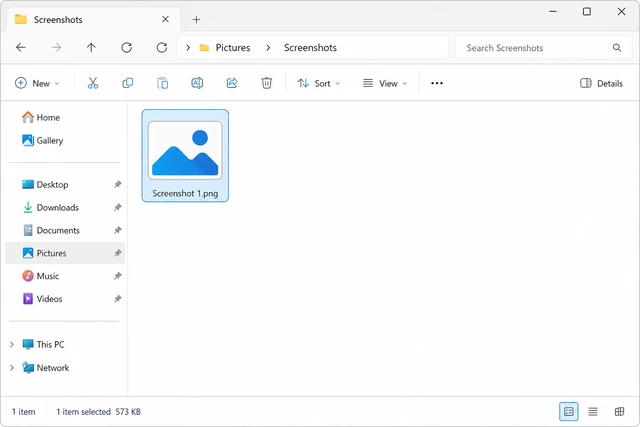
Windows always drops Win+PrtScn files in Pictures\Screenshots — looking there first beats searching the whole drive.
- Open File Explorer → This PC → Pictures → Screenshots.
- Sort by Date modified — open the newest Screenshot (N).png.
- Confirm it shows the full screen you expected.
The newest file in Pictures\Screenshots opens and shows your full-screen capture.
Folder empty? → Can't find file.
Can't find the fileClipboard snips vs Pictures\Screenshots
Remember: Win+Shift+S is clipboard-only until you Save.
Clipboard snips have no file until Paint → Save as.
Win+Shift+S does not create a document by itself — if you never pasted and saved, there is nothing to search for.
- If you used Win+Shift+S, go back to Step 4 and paste into Paint while the snip is still on the clipboard.
- If you used Win+PrtScn, continue to Step 2 of this branch.
- Do not restart the PC yet — restarting can clear the clipboard.
You know whether you expected a clipboard snip or an auto-saved file.
Search Screenshots folders and Desktop.
Search bar: Screenshots — also check Desktop and OneDrive Pictures.
OneDrive or a moved user folder can relocate Pictures — searching by folder name finds the real path.
- Press Win, type Screenshots, open the folder result under Documents or Pictures.
- Check Desktop for any .png you just named in Paint.
- If you use OneDrive, also open OneDrive → Pictures → Screenshots.
You opened a Screenshots folder or found your named PNG on Desktop / OneDrive.
Shortcut does nothingWin+Shift+S fails — open Snipping Tool instead
Open Snipping Tool from Start.
Win → type Snipping Tool → Enter → New.
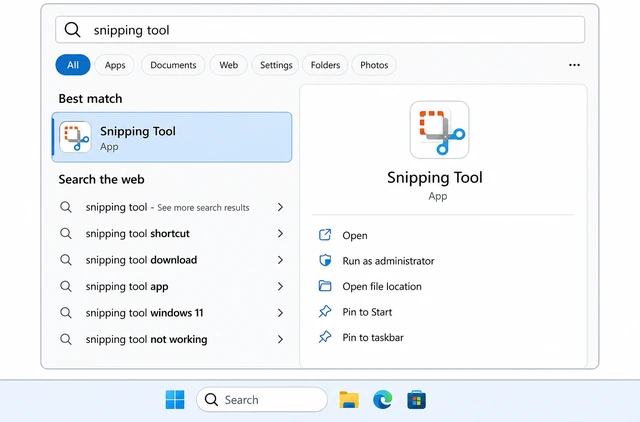
The app can capture even when the keyboard shortcut is blocked by another program or keyboard software.
- Press Win, type Snipping Tool, press Enter.
- Click New in the Snipping Tool window.
- Select an area — then paste into Paint and save like Steps 4–5.
Snipping Tool opened and New started a capture overlay (or captured a region).
Turn the shortcut back on in Settings if needed.
Settings → Accessibility → Keyboard → Use the Print screen key…
Some PCs remap PrtScn or block Win+Shift+S until Accessibility keyboard options are enabled.
- Press Win+I → Accessibility → Keyboard.
- Turn on Use the Print screen key to open screen snipping if you want PrtScn to open the bar.
- Close any fullscreen games or keyboard macro apps, then retry Win+Shift+S.
Win+Shift+S opens the snipping bar again, or you can capture reliably from Snipping Tool → New.
When This Doesn't Work
- Fullscreen game won't snip. Many games block Win+Shift+S — use the game's photo mode, or Win+G → Capture, or Win+Alt+PrtScn for Xbox Game Bar.
- Multiple monitors capture the wrong screen. Move the mouse to the display you want before Win+Shift+S, or use Rectangular snip and drag only on that screen.
- Company PC blocks screenshots. Some work laptops disable snipping for security — ask IT; personal devices are not affected.
Warnings
- Do not screenshot passwords, bank balances, or other people's private messages unless you must — images are easy to forward by mistake.
- Clipboard snips disappear if you copy something else or restart — save to a PNG before you close Paint.
- On laptops, PrtScn may need the Fn key — check the tiny labels on the keycap.
Tips
- After Win+Shift+S, click the notification toast to open the snip in Snipping Tool for markup (pen, crop) before saving.
- Win+Shift+S then Ctrl+V works in Word, Gmail, Slack, and most chat apps — you do not always need Paint.
- Pin Snipping Tool to the taskbar: right-click the app in Start → Pin to taskbar.
FAQ
Does this work on both Windows 10 and Windows 11?
Yes. Win+Shift+S and Snipping Tool are built into Windows 10 (recent updates) and Windows 11. The icons look slightly different, but the keys and paste-save flow are the same.
Where does Win+PrtScn save files?
By default: This PC → Pictures → Screenshots, named Screenshot (1).png, Screenshot (2).png, and so on. If OneDrive backs up Pictures, check OneDrive → Pictures → Screenshots too.
Why is my screenshot blurry?
You may have saved as JPEG or resized the window. Use Save as → PNG, and capture at 100% display scale. Avoid photographing the monitor with a phone when a digital snip is available.
Comments
Questions, corrections, and what worked for you. Comments are reviewed before they appear.